Introduction:
Simultaneously recording two screens is now a key need for multitasking, tutorials, comparisons, and professional presentations. Whether for work, gaming, or teaching, it improves productivity and clarity. In this
AWZware article, we'll present 3 easy methods to explain
how to record two screens at once, including free tools.
1. Record Two Screens at Once with OBS Studio
OBS Studio stands out for its powerful screen recording and streaming features, along with its flexible setup options. It gives users the ability to capture multiple displays at once, making it ideal for tutorials, presentations, and gameplay recording.
Let us see how to record two screens at once with OBS Studio in a simple way.
Step 1. Open OBS Studio. And press the Settings button in the lower right pane. Then press the Video tab to change the resolution.
Note: You must adjust the Base (Canvas) Resolution based on the number of screens you plan to capture and the Output (Scaled) Resolution. Then tap "Apply."
| Parameter |
Recording for 1080p |
Recording for 720p |
| Base (Canvas) Resolution |
- 1 monitor/webcam: 1920 x 1080
- 2 monitors/webcams: 3840 x 1080
- 3 monitors/webcams: 5760 x 1080
|
- 1 monitor/webcam: 1920 x 1080
- 2 monitors/webcams: 3840 x 1080
- 3 monitors/webcams: 5760 x 1080
|
Step 2. After specifying the number of screens, return to the main OBS interface. And you will see an empty area on the right (or left) where you can capture another monitor.
Drag and drop the original screen into the blank area to capture it.
Step 3. Now, in the Sources panel, click the Plus (+) icon, then click the "Display Capture" button in the drop-down list to add another monitor.
5 Best OBS Alternatives for Recording and Streaming [2024 Latest]
Are you looking for an OBS alternative to stream videos or record your screen? This post introduces the 5 best OBS Studio alternatives that are easy to use.
READ MORE >
2. Record Two Screens at Once with Bandicam
Bandicam is another favored screen recording software noted for its high-quality performance and easy operation. It works as a reliable 4K screen recorder, allowing users to capture multiple screens with excellent clarity and smooth frame rates, making it ideal for gameplay, tutorials, and professional recordings.
Let us see how to record two screens at once using Bandicam.
Method 1. Using the Fullscreen Recording Function
- Open Bandicam.
- Go to the Screen Recording mode and select the Fullscreen.
- Choose All display to record all display monitors.
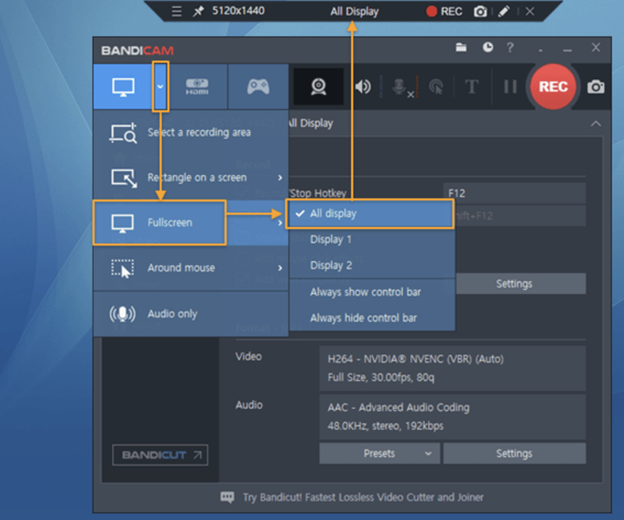
Note: If you do not see the All display option, ensure you have installed the latest version of Bandicam, 6.2.2 or later.
Method 2. Running Multiple Instances of Bandicam
- Copy and paste the Bandicam installation folder (C:\Program Files\Bandicam) into "Windows Explorer." A "Bandicam - Copy" folder will be created, and "bdcam.exe" will be present in each Bandicam folder.
- If you click on the file, you can launch several Bandicam programs.
Note: This allows you to run multiple instances of Bandicam and record each monitor separately.
Method 3. Use the Select a Recording Area Function
- Launch Bandicam.
- In the Screen Recording mode, click the 'Select a recording area' option in the menu.
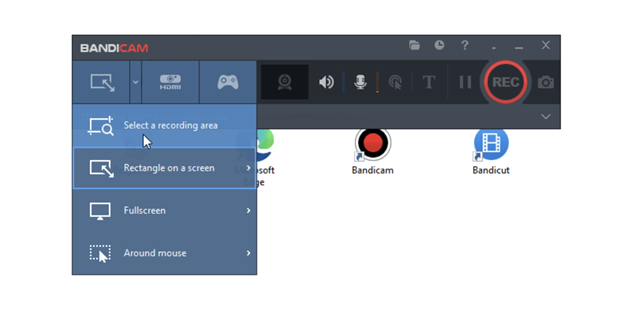
- Then click an empty area on the Windows desktop to select the entire dual-monitor setup as the recording area.
- If you then press the record start button (or the F12 hotkey), both monitors will be recorded.
Method 4. Extend the Rectangle Recording Window
- Launch Bandicam.
- In 'Screen Recording' mode, increase the size of the rectangle window by dragging the right edge of the recording area to another monitor.
This way, you can record both monitors at the same time.
Method 5. Record Dual Monitors when Windows Starts
- Start Bandicam. And select the 'Select a recording area' option.
- Click an empty area of the Windows desktop, then close Bandicam.
- Start "Windows Task Scheduler," click "Create Task...," and enter the task name, such as "Bandicam start recording."
- Next, make sure to tick "Run with highest privileges."
- Under the Triggers tab, select "At log on," then go to the Actions tab, click "Browse…," and choose the executable file located at C:\Program Files\Bandicam\bdcam.exe.
- After that, enter /record /nosplash in the “Add arguments” box.
3. Record Two Screens at Once with DemoCreator
DemoCreator is also a versatile and user-friendly screen recording software made for both beginners and professional users. It enables recording of multiple screens with ease and includes built-in editing features, making it perfect for tutorials, presentations, and compelling video content.
Let us check out how to record two screens at once using DemoCreator.
Step 1. Install and launch DemoCreator on the PC. And select Screen Recording > Screen.
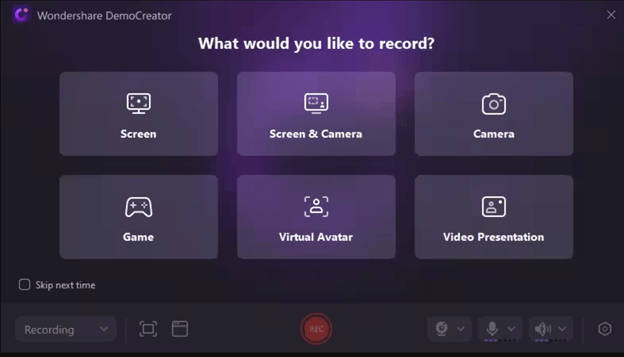
In the window, choose the fitting option, then click REC to start recording.
Step 2. Next, open the recording panel and set the recording area to capture two or more monitors.
Note: You may also adjust the view range on your screen in DemoCreator before you record. Additionally, you can activate the screen drawing tool to enable fluid, real-time screen annotation.
Step 3. Once you’ve configured your screen settings, hit the REC button to begin recording.
If you choose the Export Express workflow option, a new window will open where you can save your recorded video directly.
Simply click the Export Express button. You may also choose the Re-record button to restart recording.
Note: If you need to edit your recording but earlier selected Export Express, use the Open in Editor button to access the editor.
Step 4. If the Edit Recordings option was chosen before, you can edit your video first before saving it.
Once you have completed the editing, press the Export button in the top-right corner of the screen.
Bonus Tip: A Free and Simple Recorder for Daily Use
After seeing three practical methods to record two screens simultaneously, you might want an easier option for daily use. If a free, easy-to-use recorder is what you need, AWZ Screen Recorder is a great option.
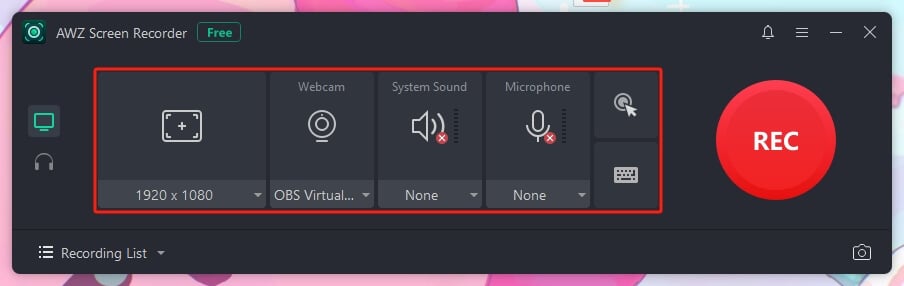
AWZ Screen Recorder is a free screen recorder with no time limit, suitable for novice users and those who record frequently. If you want to capture tutorials or meetings, it ensures a smooth and trouble-free experience.
It delivers consistent performance with little strain on your system, guaranteeing smooth, uninterrupted recordings. Additionally, its simple interface makes it easy to start recording in just a few clicks, even if you have no prior experience. Try it now!
Key Features
- Record full screen, selected area, or specific windows with ease.
- Helps record gameplay on PC without any watermarks.
- Quickly record system sounds along with the microphone input at once.
- Completely free, lightweight, and easy-to-use interface for beginners.
- Lets you record in high quality, covering both HD videos and gameplay.
A Quick Wrap Up
Recording on multiple displays is straightforward once you choose the appropriate tool. Whether selecting powerful applications like OBS Studio, high-quality software like Bandicam, or beginner-friendly platforms like DemoCreator, each method provides an effective way to record dual screens.
By following these options, you can easily learn how to record two screens at once for work, learning, or entertainment. Hope this guide is helpful!
Lena