Introduction:
Millions turn to Steam for its huge library of games and vibrant social features. But when Steam not opening, it can quickly turn excitement into frustration. No need to stress—we’ve got solutions ready. In this AWZware article, discover why Steam might not open and how to resolve it.
Part 1. Why Is Steam Not Opening?
If you’re trying to screen record on Steam and the app won’t even launch, it’s natural to wonder why is my Steam not opening. A sudden launch problem can disrupt your gaming and leave you wondering what went wrong. There are several potential causes. Don’t worry—we’re about to break down the most common reasons behind the issue.
Some of the potential reasons for Steam not opening on Windows 10/11 or Mac are:
❌ A previous Steam session didn’t shut down correctly
❌ The Steam app is corrupted
❌ Temporary files have issues with Steam (cluttered system cache)
❌ Outdated system software or device drivers
❌ Some software on the PC is incompatible with the Steam client
❌ Outdated Visual C++ runtime library
Part 2. How to Fix Steam Not Opening
Knowing the potential problems first makes addressing how to fix the problem straightforward. Recognizing the problem lets you fix it promptly, keeping frustration and delays to a minimum.
With a few simple steps, you can get Steam running smoothly again. Try these proven solutions to get the problem fixed immediately.
Fix 1. Check Network Connection
Make sure your computer is online by loading any webpage or checking your internet speed. If anything seems off, restart your router and relaunch Steam. Some routers have a reset button, and the latest ones can also be restarted from the official app.
Fix 2. Clear the App Cache
Cache helps you launch applications faster. But sometimes it can confuse memory or cause cached files to become corrupted, leading to problems. Here’s how.
Step 1. Look for the appcache folder in your Steam directory. You can find it in the C:Program Files (x86) > Steam.
Step 2. Copy the appcache folder to the desktop (make a backup) and then delete the original folder in the Steam directory.
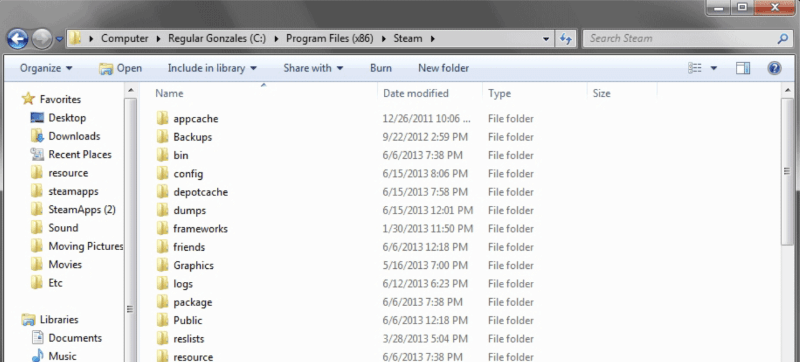
Step 3. Launch Steam again to see if it opens normally.
Fix 3. Disable Apps and Services Interfering with Steam
Some software on your computer may be incompatible with the Steam client. You must experiment with disabling or uninstalling various apps until you find the culprit. Antivirus software is the most common cause. However, you might also need to disable other apps and services, such as:
- VPNs
- IP filtering apps
- Anti-spyware apps
- P2P clients and other file-sharing software
- Firewalls and other security apps and utilities
- FTP and other web server software
Fix 4. Remove all External Devices
Drivers for some accessories can interfere with Steam. Some users report that unplugging external monitors or other devices can resolve issues with Steam launching incorrectly. Steam support also recommends trying this.
Unplug anything that’s not necessary for your computer to run, like external speakers, dongles, or flash drives. Then, try relaunching Steam.
Fix 5. Uninstall and Reinstall Steam
Try uninstalling and reinstalling Steam, then see if it opens. Here’s how.
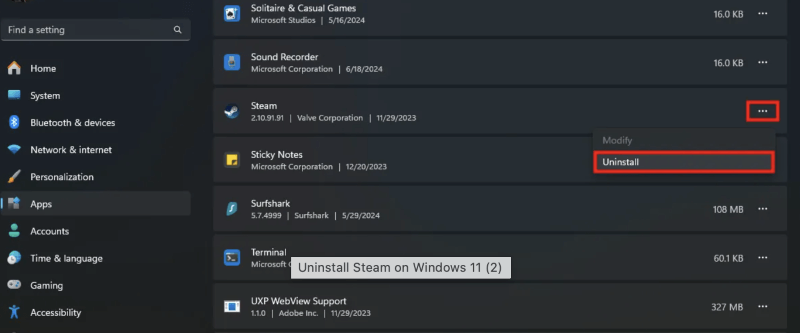
Step 1. Launch the Settings app, then go to Apps.
Step 2. Select Installed apps and find Steam.
Step 3. Click the three-dot menu next to Steam, then click Uninstall.
Fix 6. Use System Restore
Windows updates can interfere with Steam's smooth operation. You can use System Restore to fix issues where Steam won't open. Here’s how.
Step 1. Navigate to Control Panel.
Step 2. Tap the dropdown menu next to View by and select Large icons.
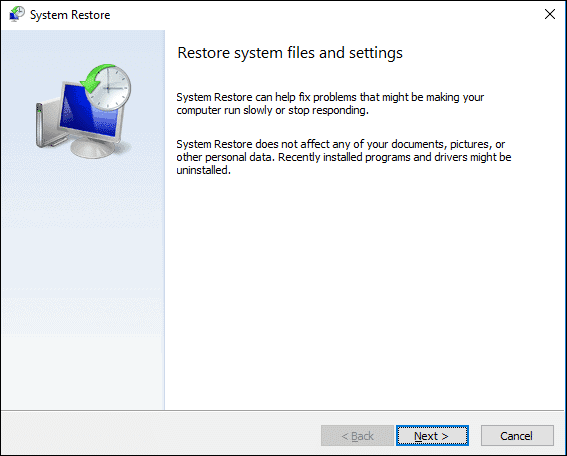
Step 3. Select Recovery and click Open System Restore.
Step 4. Press Next to find automatic restore points. And pick a date before the Windows update installation.
Fix 7. Restart Your Computer
Restarting your computer can help you clear out cache and system settings that are interfering with Steam. A system reboot should fix any weird issues caused by an anomaly in another piece of software or hardware unrelated to Steam itself. Here’s how.
Step 1. Click the Windows button.
Step 2. Tap the Power button.
Step 3. Press Restart.
Fix 8. Contact Steam Support
Despite trying all the solutions, if nothing works, you must contact the Steam Support team. Explain the fixes you’ve already tried and wait for their assistance. Here’s how:
Step 1. Head to Steam Help. And log in to your account.
Step 2. Keep your phone handy if Steam Guard is enabled.
Step 3. Navigate to the Steam Client, select Client crashes, and tap Contact Support.
Part 3. Bonus Tip: How to Screen Record on Steam
Having addressed the causes and solutions for Steam not opening, you can now dive back into your games. After fixing Steam, you might want to record gameplay on PC for highlights to share or create tutorials.
Several options exist for recording Steam gameplay, and selecting the best one helps you capture clear, seamless video. To record Steam gameplay, you can rely on built-in tools, game recording software, or platform-specific options.
Some ways to screen record Steam games include:
1. Windows Xbox Game Bar
A built-in option on Windows that lets you start recording instantly with simple shortcuts.
2. NVIDIA ShadowPlay
Ideal for NVIDIA GPU users who want smooth, performance-friendly captures.
3. OBS Studio
An excellent, no-cost tool for advanced recording and streaming flexibility.
4. AWZ Screen Recorder
Easy to use for anyone, ideal for beginners, and records in HD.
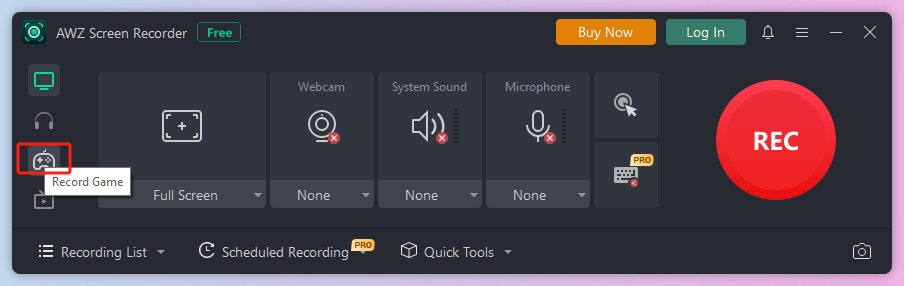
For anyone looking to screen record with Microphone, AWZ Screen Recorder offers ease and reliability. It provides high-quality video capture, easy-to-use controls, and a variety of recording modes for both beginners and pros.
Whether you're recording gameplay, tutorials, or commentary, it delivers smooth performance and clear audio. This turns your Steam gameplay recordings into hassle-free, professional clips. Download AWZ Screen Recorder and give it a try!
Quick Wrap Up
That's all, friends! Resolving Steam not opening issues doesn’t need to be stressful. By addressing the usual causes and following the fixes we outlined, Steam can run smoothly once more. After Steam starts working, you can quickly screen record on Steam with the method of your choice. AWZ Screen Recorder emerges as a top choice with its advanced yet user-friendly features.
Lena