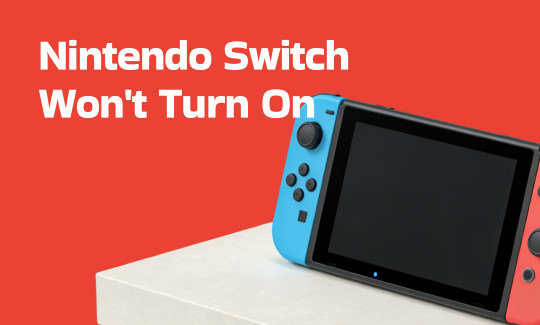
Why Won’t My Nintendo Switch Turn On?
A Nintendo Switch not turning on situation can be both confusing and frustrating when it happens all of a sudden. Being aware of the common causes makes it easier to find the issue and apply the proper fix.
Here’s a list of common causes of the “Nintendo Switch not turning on” issue.
Battery Completely Drained.
If the battery is fully drained, the console may not respond immediately. It can take several minutes of charging before any sign of power appears.
Faulty Charging Cable or Adapter.
An incompatible or broken charger can block power flow, causing your Switch to appear not to turn on.
Software Glitch or System Crash.
Temporary system errors can stop the console from booting properly and may require a hard reset.
Overheating or Hardware Protection.
If the device overheats, it may shut down automatically and refuse to turn on until it cools down to a safe temperature.
Damaged Charging Port or Internal Hardware.
Damage or wear in the charging port or internal parts may prevent power from reaching the system, needing repair.
Quick Checklist Before You Start Troubleshooting
Before trying complex solutions, eliminate a few basic issues first. These quick checks may save time and instantly resolve the problem without further troubleshooting.
Take 30 seconds to check these simple things.
- Use the Official Charger.
Make sure the official Nintendo Switch AC adapter (HAC-002) is being used. Third-party chargers may be unreliable or incompatible.
- Ensure the Power Source Works Properly.
Make sure the power strip or wall socket is providing electricity. Use a different device to verify the outlet is providing electricity.
- Check the Charging Cable Condition.
Inspect the cable closely for damage, such as fraying, cuts, or bends that may block charging.
- Proper Connection.
Ensure the charger is firmly connected to both the console and the power source.
If everything looks okay, move on to the fixes below.
How to Fix “Nintendo Switch Won’t Turn On”
When your console won’t power on, follow the proper steps to avoid making the issue worse. Below are practical methods to help you fix the “Nintendo Switch won’t turn on” error and bring it back to working condition.
Step 1. Perform a 20-Second Hard Reset
A hard reset can fix temporary system glitches that stop the console from turning on. It is often the quickest and easiest fix to try first.
- Hold down the Power button for a minimum of 20 seconds.
- Release the button and pause for a few seconds.
- Press the Power button again to turn it on.
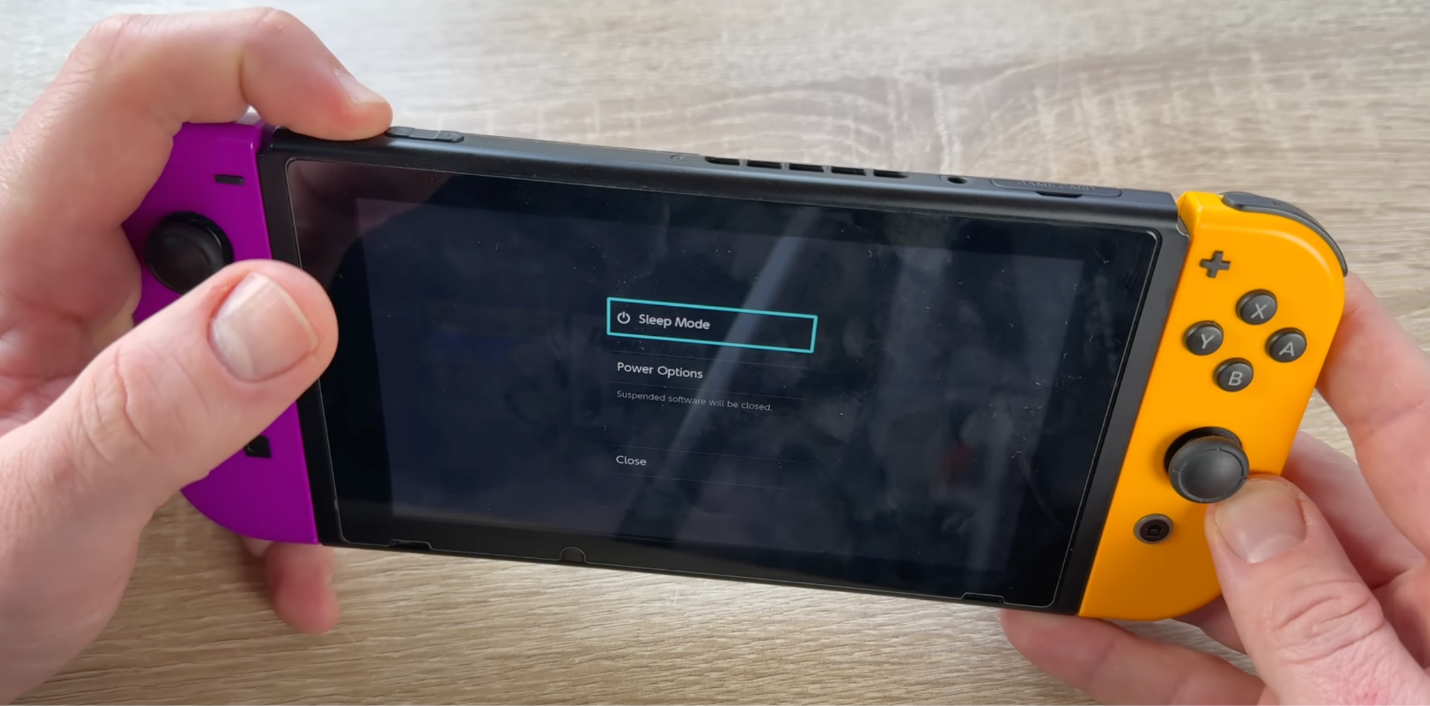
What can you do if a hard reset on the Nintendo Switch is not working? Don’t worry! Follow me to try the following steps.
Step 2. Charge Nintendo Switch Correctly (Most Common Fix)
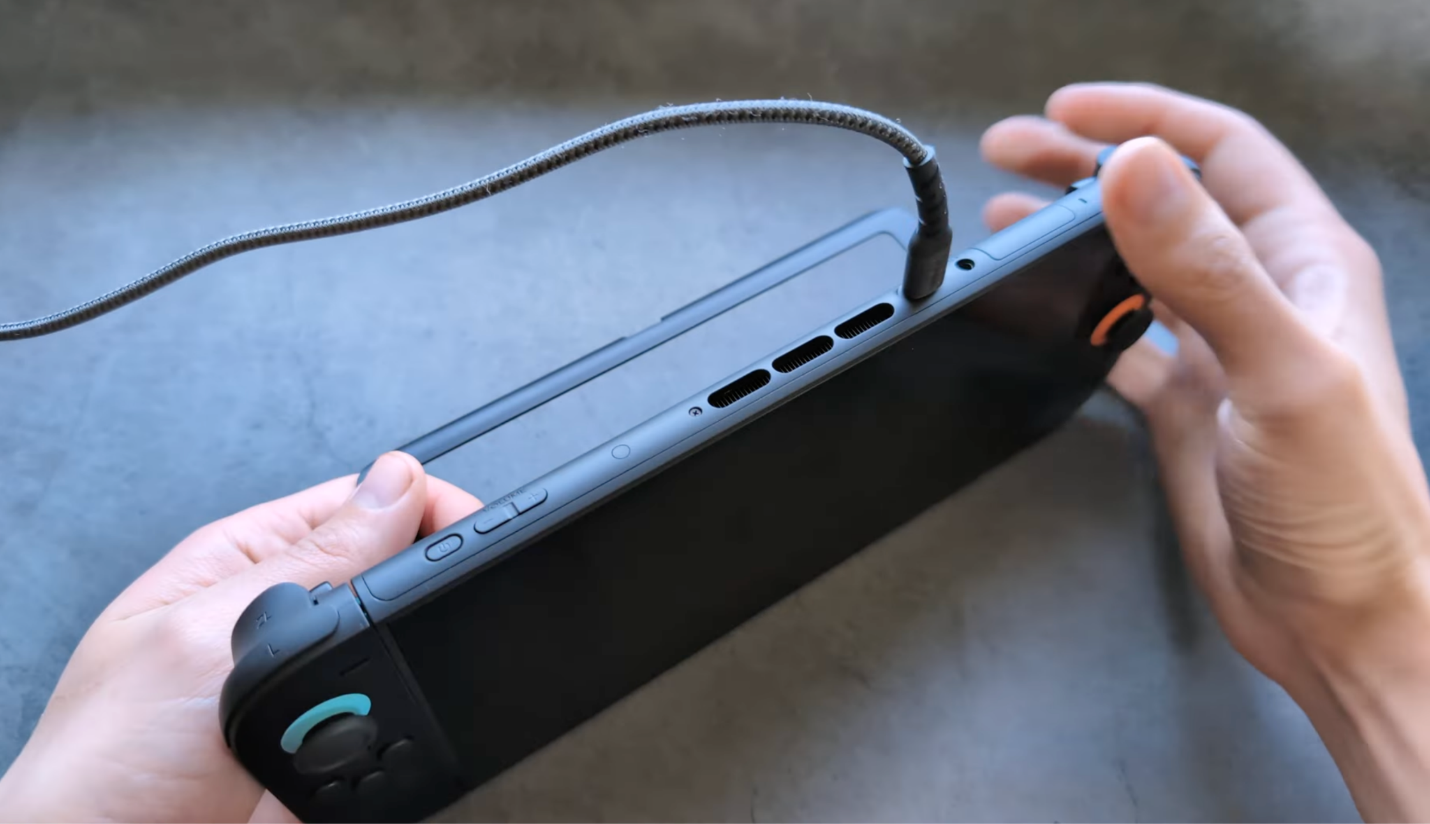
Improper charging is one of the most common reasons behind this issue. So ensuring the console charges correctly is essential. Check out how to charge the Nintendo Switch correctly.
- Use the official Nintendo Switch charger.
- Plug the charger directly into the console instead of the dock.
- Leave it to charge for at least 1 hour (2 hours is even better).
- After an hour, try the hard reset again (Step 1).
Step 3. Reset Your AC Adapter (Static Electricity Fix)
Static buildup in the adapter may occasionally affect charging performance. A reset can often restore stable power flow. Check out how.
- Detach the AC adapter from both the Switch and the wall outlet.
- Wait for at least 30 to 60 seconds.
- Connect the adapter straight to a wall outlet instead of a power strip.
- Reattach it to the Switch and press the power button.
Step 4. Boot into Maintenance Mode (Especially After a System Update)
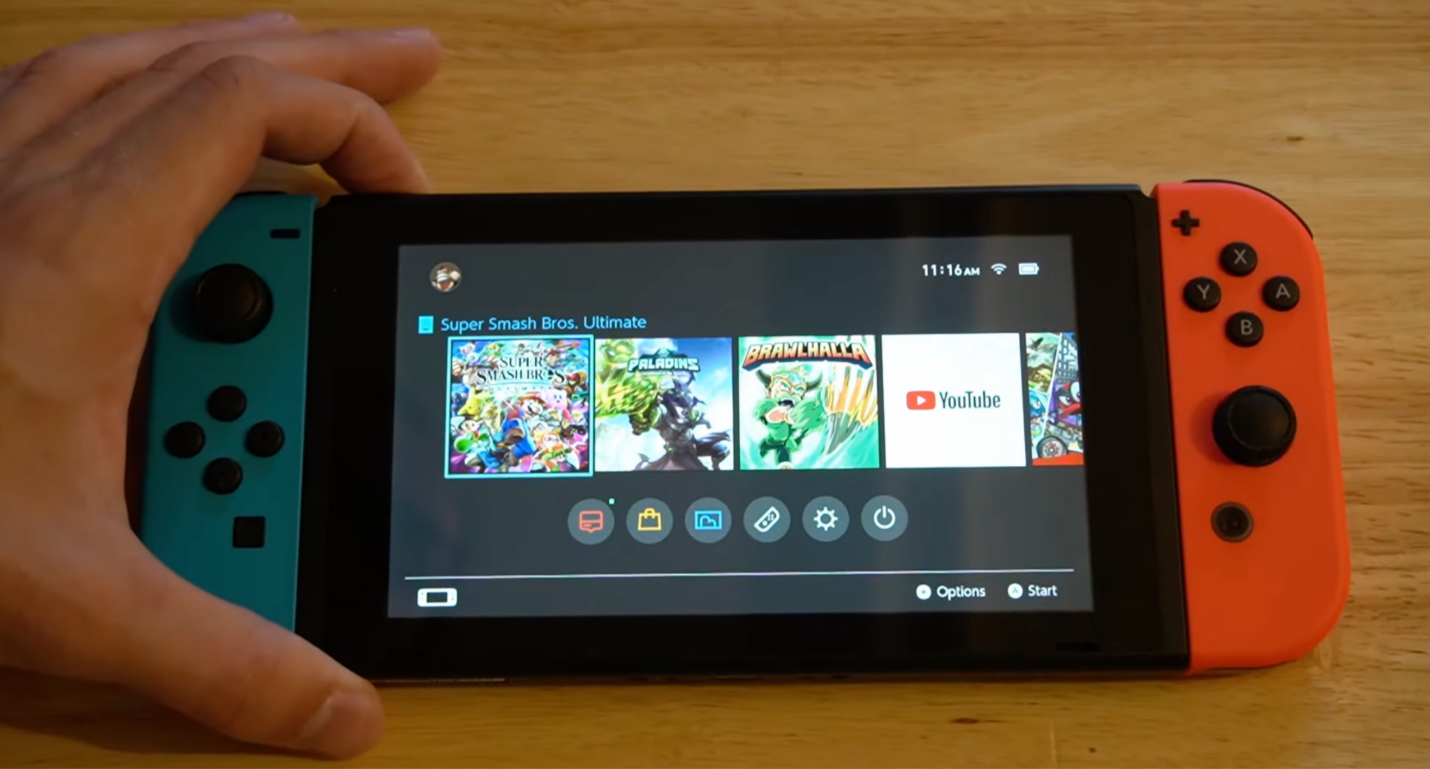
When a system error stops the console from turning on, Maintenance Mode allows troubleshooting without data loss. This is especially useful after a failed or interrupted update. It allows you to safely initialize or update the system.
- Make sure the console is powered off.
- Hold down the Volume Up (+) and Volume Down (–) buttons together.
- While continuing to hold them, press the Power button.
- Keep holding the volume buttons until the Maintenance Mode menu appears.
- Pick options like “Update System” or “Initialize Console Without Deleting Save Data.”
Step 5. Test the Dock (If You Normally Use It)
Sometimes the dock is the real problem, not the Switch.
- Bypass the dock. Plug the charger directly into the Switch. If it charges and turns on, your dock is likely faulty.
- Check the dock’s LED. Observe the LED indicator on the dock when it is connected. If it fails to light up or shows irregular behavior, it may suggest a dock power or hardware problem.
Step 6. Inspect the Charging Port for Debris
Dust, lint, or debris in the charging port may block proper contact and stop the console from charging. Carefully checking and cleaning the port can often restore normal power flow.
Here’s all that you can do.
- Use a wooden toothpick (never a metal one) to gently scrape inside the port.
- Carefully shake out any loose particles.
- Plug the charger in again and retry.
Step 7. Try a Different Charger (With Caution)
If your Switch still isn’t turning on, testing a spare charger can help find out if the original adapter or cable is the problem. Always use a certified or official Nintendo Switch charger to avoid possible damage. Avoid low-quality or unverified third-party chargers, as they may worsen the issue or fail to give stable power.
Nintendo Switch Repair Options (Cost & Process)
When home troubleshooting fails, professional repair becomes the safest and most reliable option. Selecting the correct repair service depends on your budget, urgency, and comfort level with device repairs.
Option 1. Nintendo Official Repair (Recommended)
The official repair service is the most reliable choice, since technicians use genuine parts and follow manufacturer standards. A repair request is placed via Nintendo’s support page, after which the console is sent in and a quote is given following inspection. Though it may take longer and cost more than local options, it still provides quality and warranty-safe service.
Option 2. Local Repair Shop
Local repair shops often provide faster turnaround times and more affordable pricing. A lot of technicians specialize in repairing common issues like charging port damage, battery replacement, or power IC problems. However, parts quality and technician expertise may vary, so selecting a trusted, well-reviewed shop is essential.
Option 3. DIY Replacement
Finally, self-repair can lower expenses, but it comes with considerable risk if you are not experienced. Battery or charging port replacement can be attempted with the help of online guides and tools. This option is intended for users comfortable with electronics repair, since improper handling may result in further damage.
BONUS: How to Record Switch Games for YouTube
At this point, you have reviewed the reasons and practical steps to fix the "Nintendo Switch won’t turn on" error. By creating gameplay recordings, you can share tips, entertain viewers, or launch a YouTube channel. To record gaming videos for YouTube, the right tools ensure smooth, high-quality recordings without lag or interruptions.
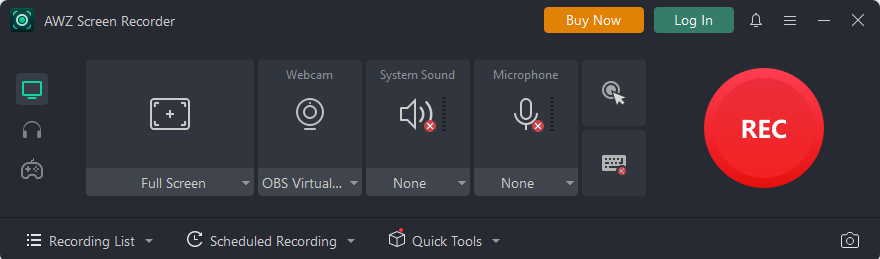
One of the most convenient ways to capture Nintendo Switch gameplay is with a free screen recorder like AWZ Screen Recorder. It works seamlessly with capture cards, allowing you to record, edit, and export your gameplay videos with minimal setup and good video quality.
This makes AWZ Screen Recorder a great option for beginners and content creators who want a smooth recording experience without technical trouble.
Here’s all you need to prepare before starting to record.
- Computer.
- Capture card for Switch.
- AWZ Screen Recorder.
- 2 HDMI cables.
- USB cable.
Final Words
Dealing with a Nintendo Switch won’t turn on issue can be frustrating. n many cases, faults can often be corrected with basic troubleshooting like resetting, checking the charger, or inspecting the hardware. Using these steps helps you quickly identify the issue and bring your console back to normal performance. Ongoing problems make professional repair the best option to ensure your device is safely restored.