Why Is My Screen Recording Not Working on Windows 11?
Why is my screen recording not working on Windows 11? Many users often wonder this. Several issues can cause this problem. Resolving the main problem is key to efficiently record screen on Windows 11.
Some frequent issues are:
- A corrupted Game Bar app
- Disabled recording permissions/permission conflicts
- Outdated graphics or audio drivers
- Insufficient storage
- Incorrect audio settings
- Corrupted system files
- System bugs and glitches
- Incompatible apps
Additionally, when recording screen and audio on Windows 11, users may encounter errors such as “Recording isn’t working” (0x8232360F, 0x82323619, 0x82323673), failed saves, no sound, or a black screen. Fortunately, following these easy troubleshooting steps will help you resolve the problem.
Quick Fix: Try Another Screen Recorder
Built-in tools sometimes fail to record the screen on Windows 11. In such cases, a dependable alternative is best. Free AWZ Screen Recorder combines smooth recording, high-quality output, mic and system audio support, customizable capture areas, and watermark-free results.
It’s easy to use, lightweight, and perfect for tutorials, meetings, and gaming. With AWZ Screen Recorder, you can instantly avoid errors, black screens, and no-audio issues. Discover how to record your Windows 11 screen effortlessly with Free AWZ Screen Recorder.
Step 1. Open AWZ Screen Recorder and click Record Screen on the interface.
Step 2. Switch to Full Screen or another option, then hit the red REC button or press F12.
Step 3. Recording will begin in 3 seconds. To stop recording, tap the Stop button or press F12 again.
Step 4. Assign a name to your file in the save dialog. And click Save to save your recording.

You can download the best screen recorder for Windows 11 now and start recording your monitor without hassle. It's free for any length of recording!
Common Fixes to Screen Recording Not Working on Windows 11
With the causes of screen recording not working on Windows 11 clear, applying the correct fix is simple. Finding the exact cause lets you resolve the issue quickly and efficiently. Below are some effective fixes you can try to restore smooth and error-free screen recording on your system.
Fix 1. Enable Background App Permissions
Tools like Snipping Tool and Xbox Game Bar require certain background app permissions to work properly. When these permissions are disabled, problems such as recording failures, access restrictions, or Xbox Game Bar not working errors may occur. Granting proper permissions keeps screen recording on Windows 11 stable and error-free.
Here’s how to enable background app permissions.
For Xbox Game Bar:
Step 1. Hit Win + G to access the screen recording taskbar.
Step 2. Next, navigate to Settings and click Widgets.
Step 3. Toggle the Record in the background while I'm playing a game option ON.
Step 4. Next, try to screen record your gameplay.
For Snipping Tool:
Step 1. Browse to Settings and click Apps. Select Apps & Features and choose App lists. Then, search for Snipping Tool.
Step 2. Next, tap the three dots icon and go to the Advanced option.
Step 3. Select Background apps permissions.
Step 4. Finally, choose Power optimised (recommended) or Always.
Fix 2. Enable GameDVR Via Registry Editor
Often, the Xbox Game Bar may be completely missing. It may have been grayed out in Settings or may not launch. This usually happens when it is disabled in the Windows Registry. In such a case, you can enable it in a few clicks. Here’s how.
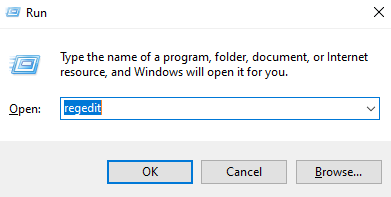
Step 1. Press the Win + R keys to open the Run dialog and type regedit. Tap the OK button.
Step 2. Browse to the
Computer\HKEY_CURRENT_USER\Software\Microsoft\Windows\CurrentVersion\GameDVR. Or paste the path directly.
Step 3. If AppCaptureEnabled disappeared, right-click the space and select New. Then, choose DWORD (32-bit) Value.
Next, name it AppCaptureEnabled. Press Enter and double-click it to set its value data to 1.
Step 4. Hit OK to save changes and restart your Windows 11 PC.
Fix 3. Disable Conflicting Apps
One solution for screen recording problems is to turn off apps that cause conflicts. Apps running in the background—like third-party screen recorders, overlays, or security programs—may cause recording issues. Closing or disabling these apps helps prevent conflicts and ensures screen recording works smoothly on Windows 11. Learn how to do so.
Step 1. Press Ctrl + Shift + Esc to launch Task Manager.
Step 2. Go to Processes. Right-click any unnecessary process and press End task.
Fix 4. Enable Game Bar on Windows 11
The Xbox Game Bar is crucial to record gameplay on PC and other activities, but it must be enabled. Enabling it ensures smooth, error-free recording. Enable the Game Bar in your system settings to restore full functionality and prevent it from failing during gameplay capture. Learn how to enable Game Bar on Windows 11.
Step 1. Hold the Win + I keys and open Settings. Go to Gaming, then select Xbox Game Bar.
Step 2. Toggle the Open Xbox Game Bar using this button on a controller option ON.
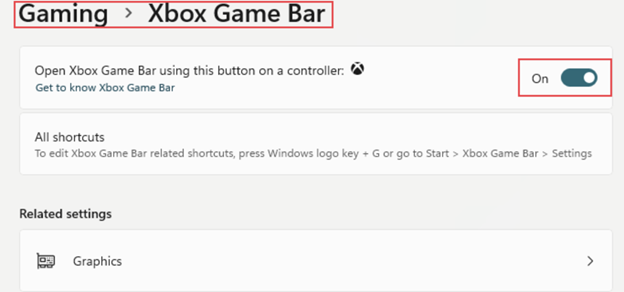
Step 3. Restart your PC. And then try recording your screen again. You can press the Win+G keys or Win+Alt+R keys.
Fix 5. Enable Windows Game Recording and Broadcasting
Turning on Windows Game Recording and Broadcasting often resolves screen recording not working on Windows 11 issues. Activating this feature allows the system to capture both gameplay and on-screen activity smoothly. This helps you record gameplay on PC without errors or interruptions. Learn how.
Step 1. Press the Win + R keys to open the Run process. Then, type gpedit.msc and tap OK to open Local Computer Policy.
Step 2. Browse to Computer Configuration and select Administrative Templates. Then go to Windows Components and select Windows Game Recording and Broadcasting.
Step 3. Next, right-click on the Enables or disables Windows Game Recording and Broadcasting option. And choose Edit.
Step 4. Finally, check either Not Configured or Enabled. Select OK and restart your system.
Fix 6. Repair and Reset the Game Bar
Persistent problems can often be solved by repairing or resetting the Xbox Game Bar. This often resolves issues that prevent screen recording from working on Windows 11. Plus, it restores stable functionality, allowing you to record gameplay on PC or other activities without interruptions. Learn how to repair and reset the Game Bar below.
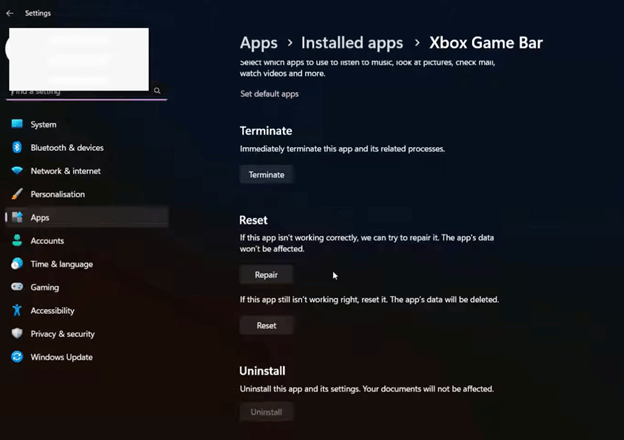
Step 1. Navigate to Windows Settings, then select Apps. Choose Apps & Features and select the App list. Then search for Xbox Game Bar.
Step 2. Next, click the vertical three-dot icon to open Advanced options.
Step 3. Then, scroll down to find Repair and Reset. Click on them if needed.
Fix 7. Update the Graphics Driver
Outdated or damaged graphics drivers may cause screen recording not working on Windows 11. Updating the graphics driver improves system performance and avoids recording software issues. Update drivers via Device Manager or by visiting your GPU manufacturer’s website. After updating, restart your PC to restore smooth, error-free screen recording. Learn how to do so.
Step 1. Right-click the Start button and select Device Manager.
Step 2. Expand the Display adapters option.
Step 3. Right-click the Graphics driver and choose Update driver.
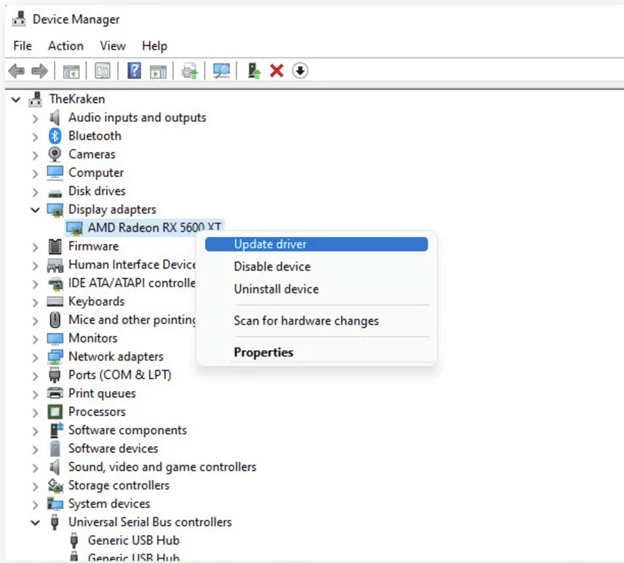
Step 4. Select Search automatically for drivers and follow the displayed steps. If required, follow these steps to disable, uninstall, and reinstall your graphics driver.
Fix 8. Update and Restart Windows PC
Keeping Windows 11 current often resolves issues such as screen recording not working. Regular updates fix issues, enhance system compatibility, and improve performance. To apply updates and restore proper screen recording, restart your PC. Follow these steps to update and restart a Windows PC.
Step 1. Access Settings and navigate to Windows Update.
Step 2. Tap Check for updates.
Step 3. Apply any updates that are available.
Step 4. After updates finish installing, restart the system.
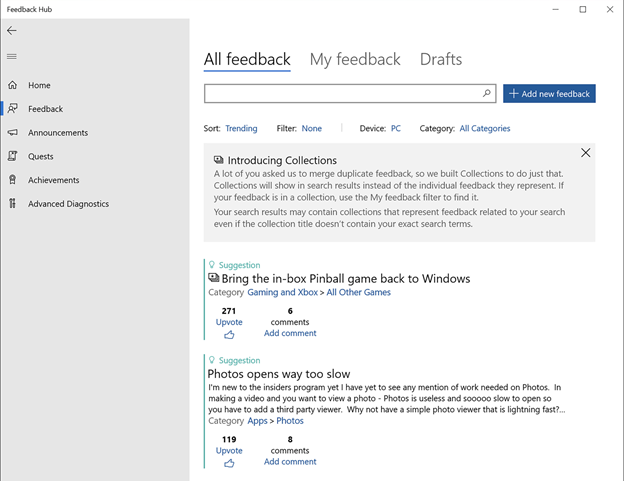
Fix 9. Feedback Hub
If none of the fixes resolve the problem, send feedback through Feedback Hub. Doing this helps Microsoft Support detect and resolve bugs efficiently. Here’s how to do so.
Step 1. From the Start menu, open Feedback Hub.
Step 2. Provide a detailed description of issues with screen recording on Windows 11.
Bottom Line
When screen recording doesn’t work on Windows 11, the cause is typically permissions, driver issues, or conflicting applications. Using the correct fixes—like enabling Game Bar, updating drivers, or trying a reliable recorder—restores smooth screen recording and ensures uninterrupted PC capture. Free AWZ Screen Recorder is an excellent alternative for recording screen activity smoothly and without hassle.