Short Answer: Is ScreenRec Safe
The short answer is: Yes, ScreenRec is generally considered safe to download and use if you download it from the official website. Meanwhile, it doesn’t distribute malware or unwanted bundled programs through its official installer. In other words, downloading ScreenRec from unofficial websites may expose you to modified installers or malicious software.
However, like any application that can capture on-screen activities, you should understand its privacy practices, permissions, and cloud storage features before recording sensitive information.
What Is ScreenRec
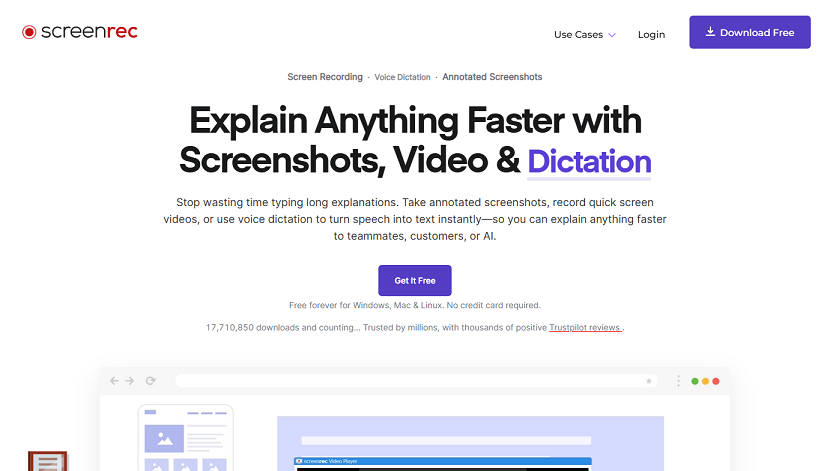
ScreenRec is a free screen recording and screenshot application designed for Windows and macOS. It allows you to capture screens, record audio, and instantly share recordings using cloud-generated links.
Unlike professional video editing software, ScreenRec focuses on simplicity and speed. Its lightweight interface makes it suitable for everyday recording tasks without requiring extensive technical knowledge. With ScreenRec, you can:
- Record tutorials
- Capture Teams, Zoom, Webex, or other online meetings
- Demonstrate technical issues
- Create educational videos
- Share product demonstrations
- Record presentations
- Take screenshots with annotations
Key Features of ScreenRec:
- It allows you to record high-quality videos for tutorials, presentations, and other uses.
- It offers a screenshot tool to capture and share images.
- It can automatically generate shareable links after recordings are uploaded.
- It can record system audio, microphone input, and webcam videos when enabled.
- It consumes fewer system resources than other professional recording software.
Is ScreenRec Safe to Download
For most of us, the biggest security concern is whether downloading ScreenRec could introduce malware or unwanted software. Fortunately, when you download ScreenRec from the official source, it has a good reputation for being safe to install. Hence, the safest way to install ScreenRec is to use its official website.
By the way, you should avoid third-party download sites. Although many software download portals are legitimate, others may package installers with adware, browser extensions, potentially unwanted programs, or modified installers.
Is ScreenRec Safe to Use
Since ScreenRec records our screen, microphone, and, optionally, our webcam, many of us are also concerned about how it handles recordings and personal data after installation.
In general, ScreenRec is safe for everyday use once you understand its permissions and cloud-sharing features. Like other screen recorders, ScreenRec also requires access to certain system resources to perform its core functions, but those permissions should be granted thoughtfully.
Pros and Cons of ScreenRec
Like other screen recorders, ScreenRec also has advantages and limitations. Just as follows:
Pros of ScreenRec:
- Easy to use: The interface is simple enough for beginners yet provides the core features most users need.
- Free version available: The free version of ScreenRec offers useful recording capabilities with no time limits.
- Lightweight performance: Compared with professional screen recorders, ScreenRec uses fewer system resources.
- Instant sharing: Generating shareable links makes collaboration quick and convenient.
- HD screen recording: The software produces clear recordings suitable for tutorials, product demos, presentations, and online learning.
- Screenshot tool included: It allows you to take screenshots.
Cons of ScreenRec:
- Limited video editing: There are no advanced editing features, such as transitions, animations, and multi-track editing.
- Fewer professional features: Compared with tools like OBS Studio, ScreenRec offers fewer advanced customization options for recording and streaming.
Best ScreenRec Alternatives
Though ScreenRec is a good choice for screen recording and sharing, it may not meet everyone’s needs. If you need basic or advanced editing features or live-streaming capabilities, you can try alternatives to ScreenRec. Here are some of the best ScreenRec alternatives.
To help you make a quick choice, you can refer to the comparison table below:
AWZ Screen Recorder Free Download
|
Software |
Best For |
Free Version |
Built-in Editor |
|
AWZ Screen Recorder |
Simple screen recording and easy sharing |
✅ Yes |
Basic |
|
OBS Studio |
Professional recording and live streaming |
✅ Yes |
❌ No |
|
ShareX |
Screenshots and lightweight screen capture |
✅ Yes |
Basic |
|
Snipping Tool |
Quick screenshots on Windows |
✅ Yes |
Limited |
|
Xbox Game Bar |
Gameplay recording |
✅ Yes |
❌ No |
|
Loom |
Team collaboration and video messaging |
✅ Yes |
Basic |
#1. AWZ Screen Recorder
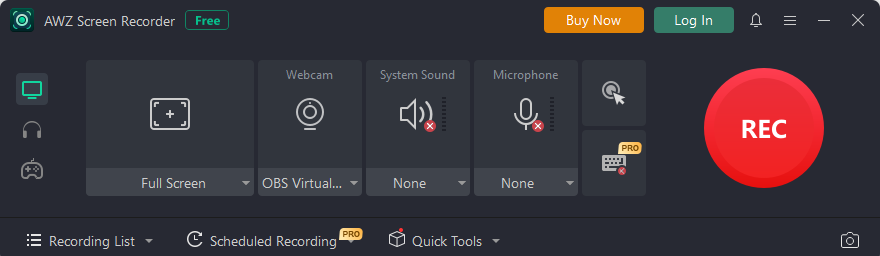
AWZ Screen Recorder is one of the best alternatives to ScreenRec. If you are searching for free screen recording software or an easy screen recorder, AWZ Screen Recorder is a strong option. It is designed to capture the screen fast and straightforwardly, so you can record activity without dealing with a steep learning curve.
Additionally, AWZ Screen Recorder offers a built-in video editor with basic editing features for recordings. What’s more, it offers a range of customizable settings for video and audio recording. Whether you need to create a tutorial, capture a webinar, record a software demo, or save a quick video clip, AWZ Screen Recorder is a reliable choice.
Highlighted Features of AWZ Screen Recorder:
- Allows recording of full screen, selected region, or specific windows.
- HD screen recording for clear tutorials, demos, and presentations
- Webcam recording and overlay support for facecam videos and training content
- Supports recording audio from the system and microphone for voiceovers and commentary.
- Scheduled recording for webinars, classes, and timed sessions
- Basic editing tools for trimming and simple adjustments
- Its interface is intuitive and user-friendly
Pros:
- Easy to use
- Offers a free version for screen recording
- Suitable for quick recordings
- Provides basic editing and sharing options for recordings
- Offers a range of customized settings for video and audio recordings
#2. OBS Studio
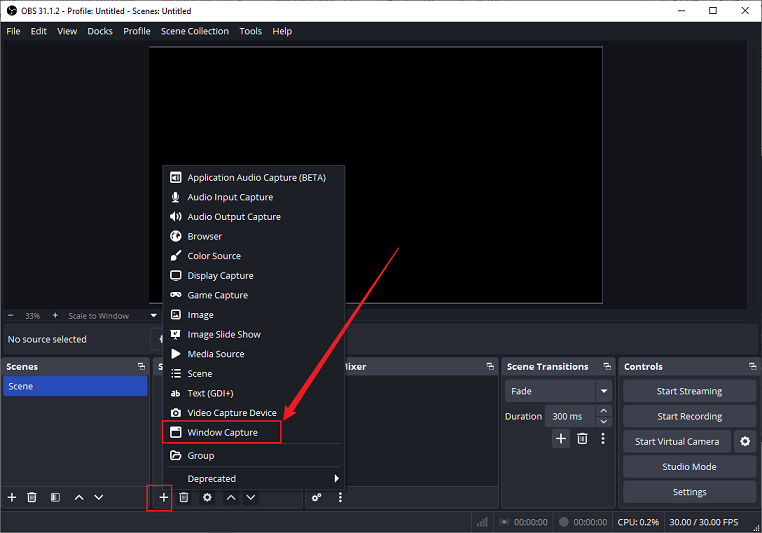
OBS Studio is one of the most popular open-source screen recording and live streaming applications. With support for multiple scenes, audio sources, and capture options, OBS Studio offers far more flexibility than many lightweight recorders.
Pros:
- Completely free and open source
- Provide a wide range of customizable settings for recording and live streaming
- Excellent recording quality
- Supports multiple audio and video sources
- Works on Windows, macOS, and Linux
Cons:
- Requires a steep learning curve
- No built-in video editor
![8 Fixes for “OBS Not Recording Audio” [Easy & Proven Fixes]](https://img.swifdoo.com/image/obs-not-recording-audio.png)
8 Fixes for “OBS Not Recording Audio” [Easy & Proven Fixes]
Are you troubled by “OBS not recording audio”, “OBS not capturing game audio”, or other similar issues? Read this article to find the causes and solutions.
READ MORE >#3. ShareX
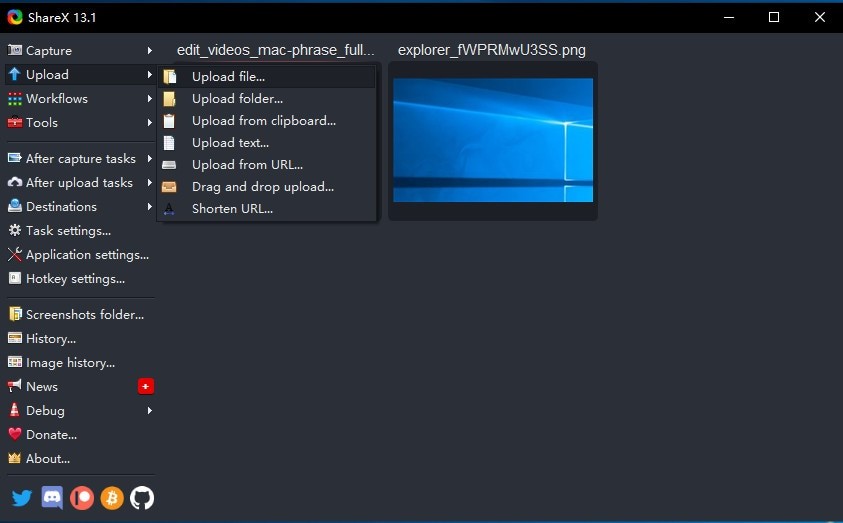
ShareX is a lightweight tool for screen recording and taking screenshots. In addition to simple screen capture, it can help you streamline repetitive workflows with custom actions and annotation options.
Pros:
- Free and open source
- Offer several recording modes
- Allows making annotations while screen recording
- Workflow automation
- No advertisements
Cons:
- The interface may feel overwhelming for beginners
- Video recording features are more limited than those of dedicated recorders
#4. Xbox Game Bar
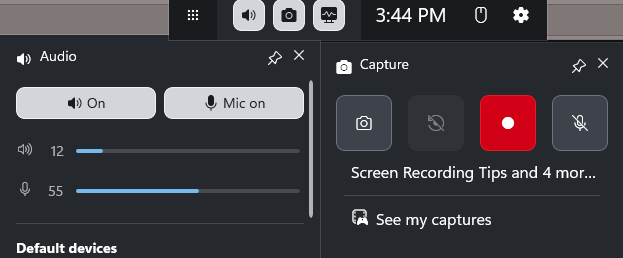
Xbox Game Bar is preinstalled on Windows 10 and 11 and supports recording activities happening on the screen. Although it was originally designed with gaming in mind, it can also be useful for quick desktop recordings and simple capture tasks. You can use it to record video games easily. Meanwhile, its straightforward interface makes it easy to start recording without much setup.
Pros:
- Free to use
- Its interface is simple and user-friendly
- Good recording quality
Cons:
- Without many customizable settings for recording
- Primarily designed for gaming
#5. Loom
Loom is designed for teams that frequently communicate through recorded videos. It focuses on fast sharing and collaboration, making it a strong option for remote work, online teaching, and business communication. With browser support and simple editing tools, Loom allows you to create and distribute videos with minimal effort.
Pro:
- Instant sharing
- Team collaboration
- Browser support
- Basic editing features
Cons:
- Some advanced features require a subscription
- Cloud-based workflow may not suit everyone
Conclusion
Is ScreenRec safe? After reading this article, we can conclude that ScreenRec is safe to download and use as long as you get it from the official website. Meanwhile, ScreenRec is not widely associated with malware or bundled software. With ScreenRec, you can record online videos, video meetings, video games, and other on-screen activities effectively. Additionally, you can try an excellent alternative to ScreenRec, such as AWZ Screen Recorder.