Why Is OBS Not Recording Audio?
OBS is one of the most popular free screen recorders that can capture screens, audio, and webcams. It relies on Windows audio devices and its internal audio routing to capture audio correctly. OBS may not record audio when any setting is misconfigured. Here are some common causes for why OBS is not recording audio:
- OBS Audio Mixer is muted.
- You selected the wrong desktop audio device.
- The microphone input is incorrect.
- Audio tracks are disabled, or the wrong audio tracks are enabled in Output settings.
- The audio drivers are outdated.
- Software conflicts.
- OBS lacks administrator permissions.
- Windows Volume Mixer is blocking OBS.
The above common causes can make the following OBS issues:
- OBS recording no desktop sound
- OBS is not recording the microphone audio
- OBS is not capturing game audio
- OBS Audio Mixer not moving
How to fix “OBS not recording audio”? Just read on!
How to Fix OBS Not Recording Audio
I have tested and found several effective solutions to fix “OBS not recording audio”. No, let’s check the solutions one by one.
Fix 1: Check and Unmute in the OBS Audio Mixer
The first thing you should check is the OBS Audio Mixer panel. Many users accidentally mute desktop audio or microphone sources without realizing it. This mistake can cause OBS not to record audio. How to check the OBS Audio Mixer? Follow the steps below:
Step 1. Run OBS on your PC and locate the Audio Mixer panel at the bottom.
Step 2. Here, make sure that the volume sliders of Desktop Audio and Mix/Aux are not muted. Meanwhile, verify that volume sliders are not set to zero.
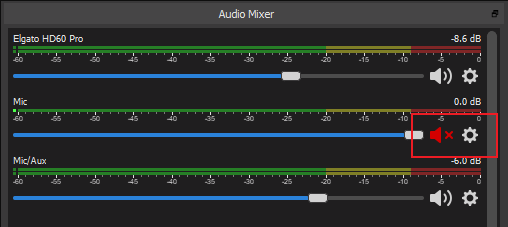
Step 3. Next, you can play a video or speak into your microphone to check if the audio meters move. If they can move, it means that OBS is detecting sound correctly.
If the meters are inactive, you may have selected the wrong device, or your Windows audio settings may be incorrect.
Fix 2: Verify Global Audio Devices in OBS Settings
How to verify Global Audio Devices in OBS to resolve the OBS not capturing sound issue? Check the steps below:
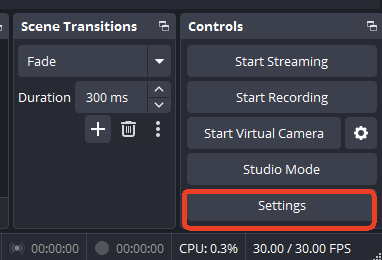
Step 1. Open OBS and click the Settings button in the bottom right.
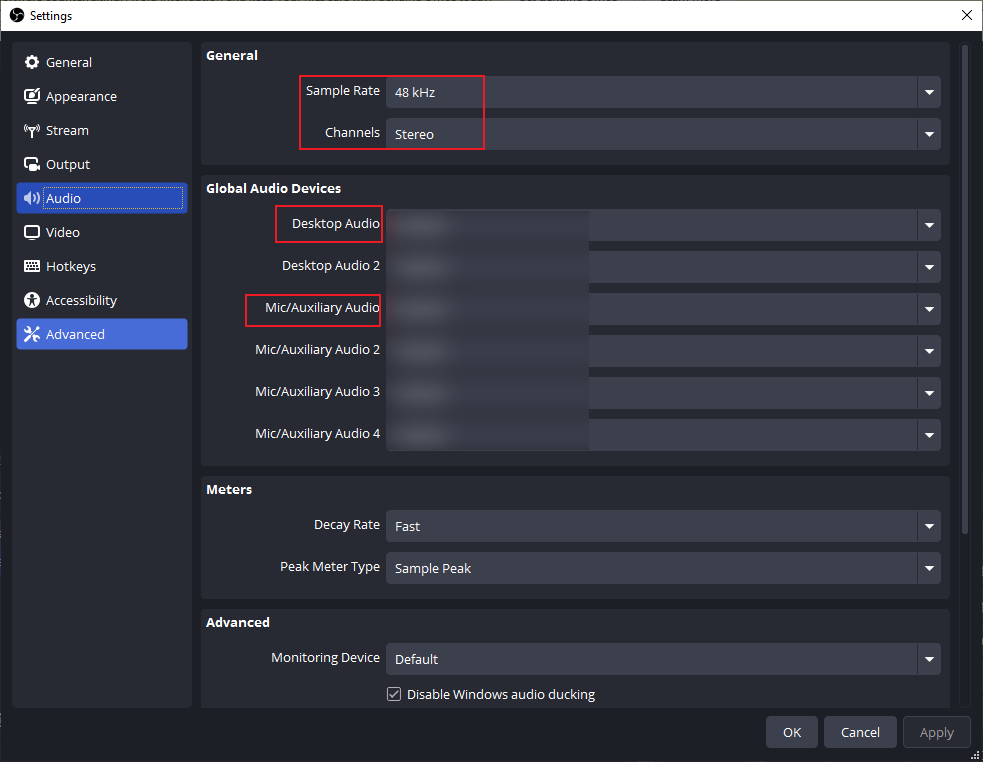
Step 2. Then go to the Audio section. Set Sample Rate to 48 kHz and Channels to Stereo.
Step 3. More importantly, open the Desktop Audio list, select your actual playback device, then expand Mic/Auxiliary Audio to select your specific microphone. Don’t keep the Default option.
Tips: If you recently connected with Bluetooth headphones, an HDMI monitor, or a USB headset, Windows may automatically switch the default audio device, which can cause OBS to capture the wrong source.
AWZ Screen Recorder - OBS Alternative
Fix 3: Set the Speaker as the Default Audio Device
Since OBS depends heavily on the Windows default playback device, it cannot capture desktop audio correctly if you select the wrong speaker or headset. Hence, you need to set the Speaker as the default audio device.
Step 1. Right-click the speaker icon in the Windows taskbar. Then, select Sound Settings.
Step 2. Open the Output list and choose your active speaker or headset.
Step 3. Click Sound Control Panel, locate your speaker under the Playback tab, right-click it, and select Set as Default Device.
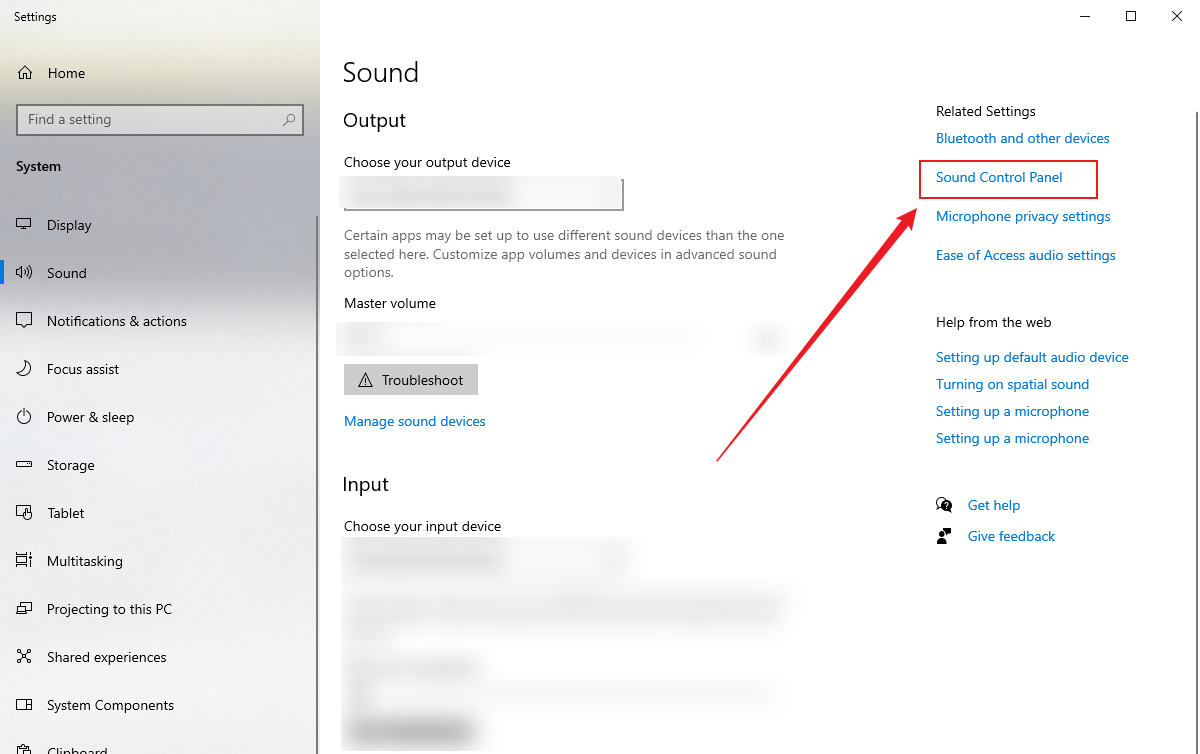
Later, you need to restart OBS and test desktop audio again.
Fix 4: Check Windows Volume Mixer & Sound Settings
Sometimes, Windows may block OBS from accessing audio properly. In that case, you need to check the Windows volume mixer and sound settings.
Step 1. In the bottom taskbar of Windows, right-click the speaker icon and select the Open Volume Mixer option.
Step 2. Here, ensure OBS is not muted, and its volume is reasonable.
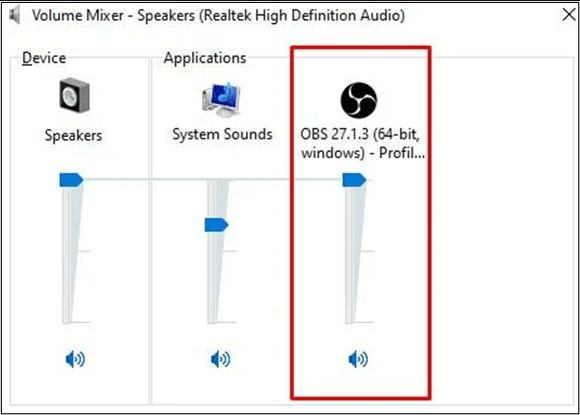
Tips: You’d better check App permissions. Open Settings and go to Privacy & Security. Navigate to the Microphone section and ensure that microphone access is enabled and that OBS has permission to use this microphone.
Fix 5: Confirm Audio Tracks in Output Settings
Instead of recording only one audio track, OBS allows you to record multiple audio tracks. If the wrong audio track is enabled, the final recording may have no sound even though OBS detected audio during recording. Hence, you need to check the audio tracks.
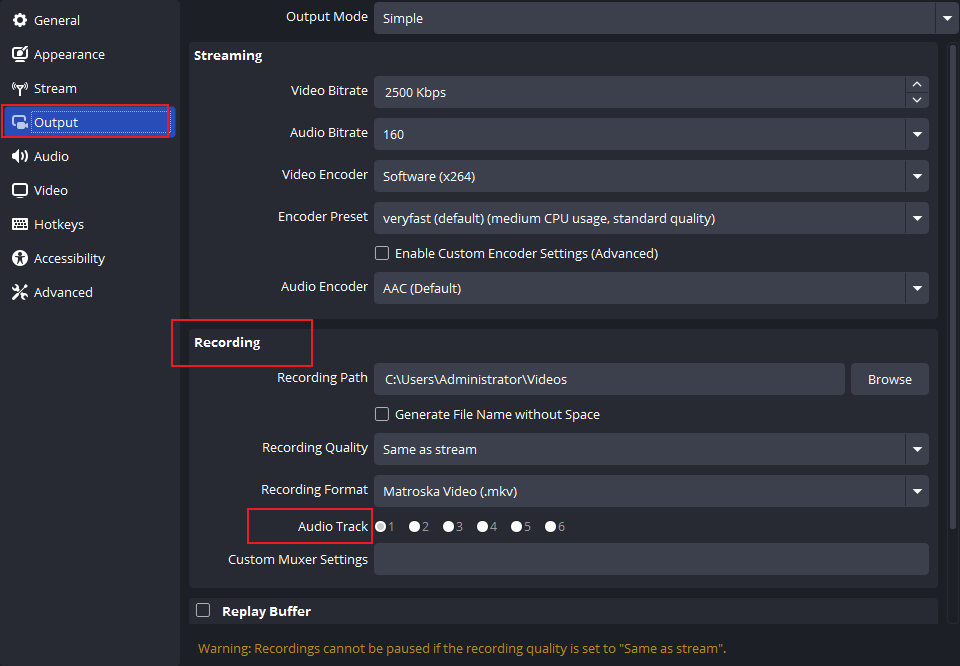
Step 1. Open OBS and click Settings.
Step 2. Click Output and find the Recording section. Here, ensure Track 1 is selected.
Fix 6: Restart OBS, Run as Administrator, and Update
In addition, you can try to close OBS and reopen it when you experience the OBS not capturing audio issue. Meanwhile, run OBS as administrator and ensure that you are using the latest version of OBS.
#Run OBS as Administrator
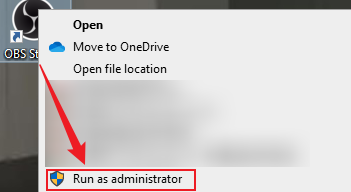
Close OBS, right-click on OBS, and select the Run as Administrator option. This fix is quite useful when recording games, capturing browser audio, or using Game Capture mode.
#Update OBS
Older versions of OBS may contain bugs or device compatibility issues. You need to download the latest version of OBS.
Fix 7: Update Audio Drivers
Outdated audio drivers can prevent OBS from recording audio correctly. To record audio correctly, update audio drivers in time.
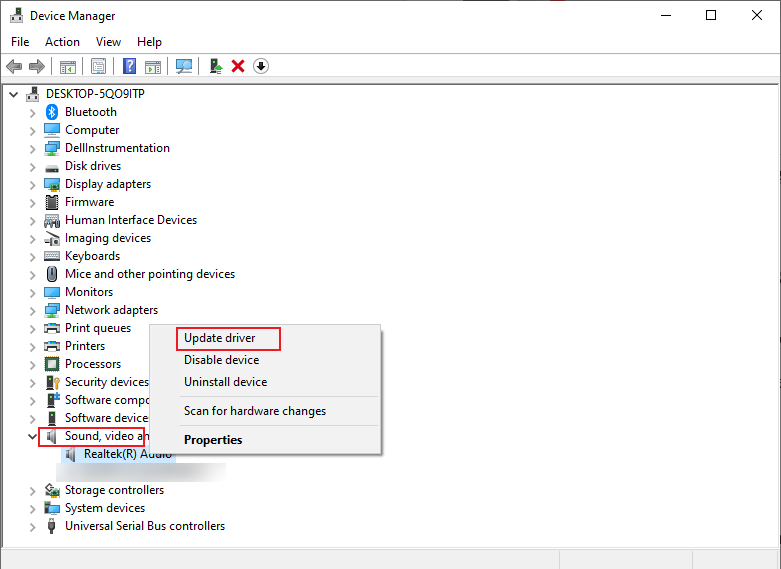
Step 1. Press Win + X and click Device Manager.
Step 2. Expand “Sound, video and game controllers” and right-click your audio device.
Step 3. Here, click Update driver.
Fix 8: Resolve Software Conflicts
If you open several applications at the same time, those applications can interfere with OBS audio capture. I rounded up applications that can cause conflict.
- Discord
- Zoom
- Voicemod
- Nahimic
- NVIDIA Broadcast
- Virtual Audio Cable
Therefore, you’d better close those applications when recording with OBS.
Fix 9. Use OBS Alternatives
If the above fixes can’t work, try an OBS alternative. Below are some reliable alternatives to OBS for you to choose from.
- AWZ Screen Recorder
- Bandicam
- Xbox Game Bar
- Screenpal
- Loom
- Screencastify
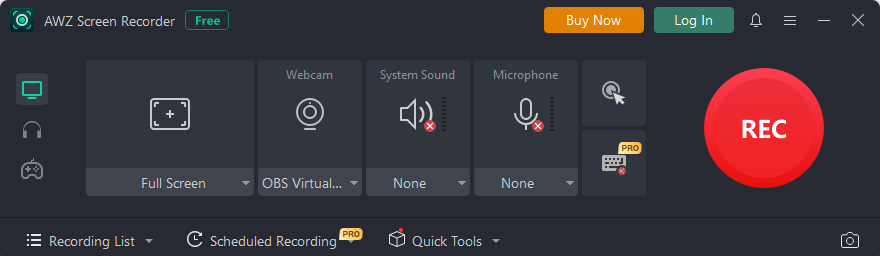
Among them, I strongly recommend AWZ Screen Recorder. It is a free screen recorder for both Windows and Mac. You can use it to record the screen and audio effectively. Additionally, it is a streaming video recorder. Moreover, in addition to recording video in MP4, it offers other video and audio output formats. You can use it to record YouTube video to audio as needed.
Best OBS Audio Settings for Recording
Using optimized audio settings can improve recording reliability and sound quality. You can refer to the table below to adjust your audio recording settings in OBS.
|
Setting |
Recommended Value |
|
Sample Rate |
48 kHz |
|
Channels |
Stereo |
|
Desktop Audio |
Manual device selection |
|
Mic/Aux |
Manual device selection |
|
Audio Bitrate |
160–320 kbps |
|
Recording Format |
MKV or MP4 |
Conclusion
The OBS not recording audio issue is usually caused by muted audio sources and other common causes. It is not difficult to resolve this issue. In most cases, this issue can be resolved through checking the OBS Audio Mixer and verifying your desktop audio settings. Additionally, you can also try to use OBS alternatives like AWZ Screen Recorder. By following the fixes above, you can easily fix OBS audio problems.