Knowing how Clapper screen recording works is essential for privacy, ethical sharing, and proper content reuse. While some worry about alerting content creators, others want to steer clear of account issues or misunderstandings. Understand Clapper’s notification behavior and discover how to screen record on iPhone and Android, all while staying ethical and confident.
Overview of Clapper
Clapper is a community-focused social media platform that encourages authentic expression through short videos, live streaming, and audio rooms. With a focus on genuine users and chronological discovery, it avoids heavy algorithms and attracts creators who want transparent, meaningful interactions.
Often viewed as a TikTok alternative, Clapper offers fewer restrictions, improved monetization opportunities, live audience interaction, and a more open, supportive environment for community-based content sharing.
Does Clapper Notify Screen Recording
Does Clapper notify screen recording? The answer is NO. It is a common question among users. At present, Clapper does not notify users when their screen is being recorded.
However, there is a special situation worth noting related to Clapper DND recording. With DND (Do Not Disturb) mode, Clapper allows a private setting for invited participants, minimizing interruptions during focused or live sessions. In most cases, DND does not influence whether Clapper detects a screen recording.
But there is an exception. When you take a screenshot or start screen recording within a DND session, Clapper may notify the host or participants that a recording or screenshot has occurred. Even so, users should always respect privacy and content ownership when recording.
So, can you screen record on Clapper? Yes, screen recording is possible on Clapper, and the app does not send notifications when it’s in progress. Even with DND enabled, screen recording stays private and unobtrusive. Nonetheless, responsible use is key: respect creators’ privacy and do not share sensitive content without approval.
Does Clapper Notify Screenshots
Does Clapper notify screenshots? The answer is again, NO. Clapper does not notify users when someone takes screenshots of their content in regular mode. Whether you capture a post, comment, or live stream frame, Clapper currently has no screenshot detection or alert system, allowing screenshots to be taken privately.
How to Make a Clapper Screen Recording
If you want to screen record on Clapper, the process is simple using your device’s built-in recording tools or trusted third-party apps. Many users record Clapper content for personal reference, education, or content creation, provided it’s done responsibly.
#How to Screen Record on Clapper on iPhone
To capture Clapper content on an iPhone, the easiest and safest method is Apple’s native screen recording tool, which is dependable and requires no extra apps. It lets users record online videos with audio easily while preserving video quality and device security.
Learn the steps to screen record Clapper on iPhone using its built-in recording feature in a few clicks.
Step 1. Enable the Screen Recording feature first if you don’t add it to the Control Center.
Swipe down from the upper-right section of the screen to access the Control Center. Then hit the + icon at the upper left.
Select the Add a Control option to access the controls gallery. And click the Screen Recording option to add it to the Control Center.
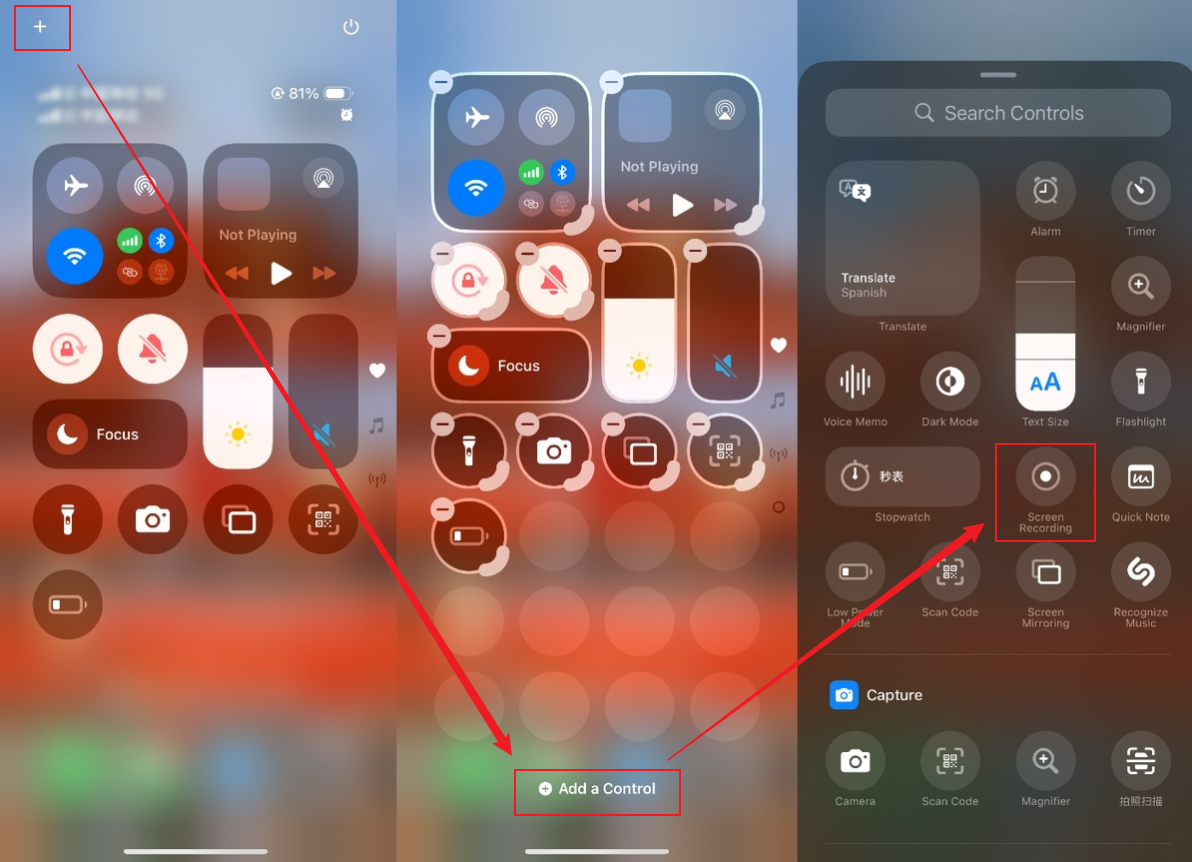
Note. Enabling the Screen Recording feature varies by iPhone operating system. These steps are designed for iOS 18.
Step 2. Open the Clapper video you need to record and swipe down from the upper right.
Step 3. Click the gray Record icon to activate the recording. You must exit the Control Center with a 3-second countdown.
Step 4. End the recording by selecting the Screen Recording button on top and tapping Stop. The screen recording from Clapper will be available in your Photos app.
#How to Make a Clapper Screen Recording on Android
To capture Clapper videos on Android, using a reputable third-party app is often the most effective choice. XRecorder is highly recommended because it supports high-quality video, internal audio recording, and smooth performance without watermarks. It offers Android users a simple and effective way to record Clapper content with clarity and efficiency.
Discover the steps to make a Clapper screen recording on Android using XRecorder with ease.
Step 1. Download and install XRecorder from the Google Play Store on your Android.
Open XRecorder and allow the necessary permissions to record your screen and access storage.
Step 2. Hit the red record button on the floating ball (or the main app screen) to begin.
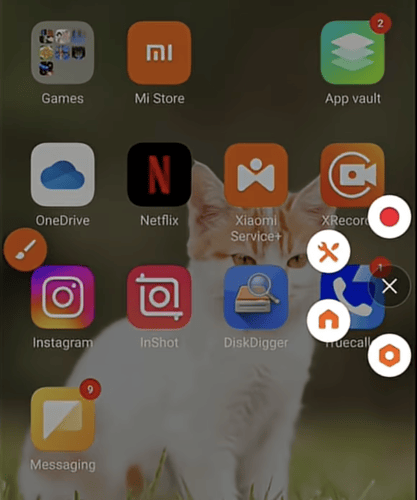
Step 3. Enable "Clapper" Features:
- Camera: Tap the floating toolbar icon and select the camera option to show your face in a small window (your "clapper" shot).
- Drawing: Use the brush tool to draw on the screen as if you're setting up the scene or tapping the screen.
Step 4. Perform your screen actions; the toolbar allows pausing or stopping.
Once recorded, click the Stop button (often in the floating toolbar or notification bar). Your video saves to the app's gallery.
Final Words
Does Clapper notify screen recording or screenshot is a concern for many users, and in most cases, the answer is no. In general, Clapper lets users record videos without alerts, which is practical for personal or educational use. However, special scenarios like DND mode may involve notifications, so awareness is essential. When you make Clapper screen recordings, always act ethically, respect privacy, and never share sensitive content without consent. Responsible use encourages respect, safety, and harmony within the Clapper community.