Can VLC Record Video?
Can you record videos with VLC Media Player? Yes, you can! VLC offers built-in recording features. You can use its recording feature to:
- Record activities happening on the screen
- Capture webcam footage
- Recording online streaming videos
- Record IPTV streams
- Record audio from the microphone
- Save portions of videos while playing
How can you use VLC for recording? In the following content, let’s learn the step-by-step guidance.
What You Need to Prepare Before Recording with VLC
Before starting to record, you’d better make the following preparation:
- Install the latest version of VLC
- Sufficient storage space for recordings
- Necessary permissions for screen and microphone access
- A stable internet connection when recording online videos.
How to Record Your Screen with VLC
How to record activities happening on your screen with VLC? It is quite easy to follow the steps below. If you are a beginner, VLC's interface is not intuitive and has a learning curve for recording. In that case, you can try another free screen recorder, such as AWZ Screen Recorder.
Here, let’s learn how to record the desktop screen with VLC:
Step 1. Run VLC on your PC. Make sure you have installed the latest version.
Step 2. Click Media in the top menu, then select Open Capture Device. Then, the Open Media window will appear.
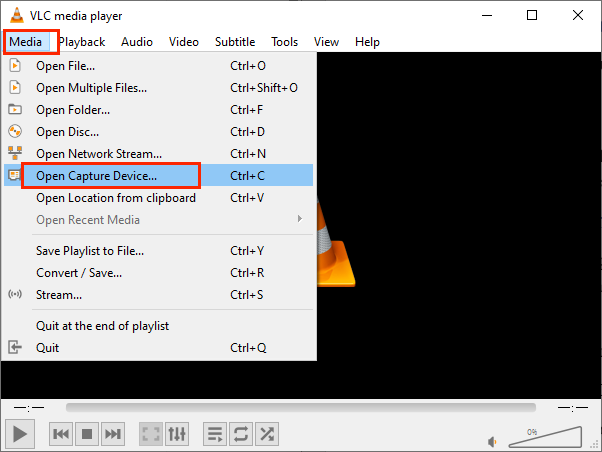
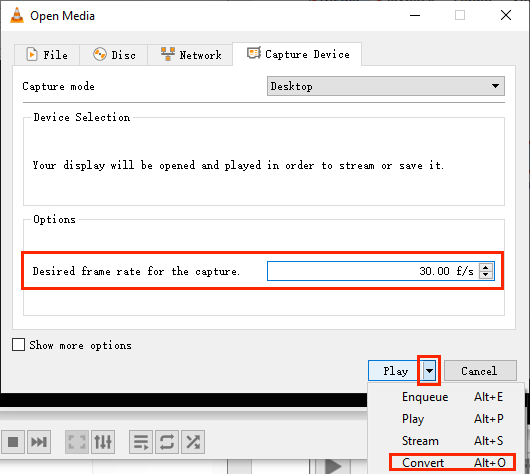
Step 3. Under the Capture Device tap, expand “Capture mode” and select Desktop. In this way, you set VLC to capture your screen rather than a webcam or another device.
Step 4. Now, you can set the recording frame rate in the “Desired frame rate for the capture” box. For instance, you can enter 24-30 FPS for smoother recordings. Next, click the inverted triangle next to Play and select Convert.
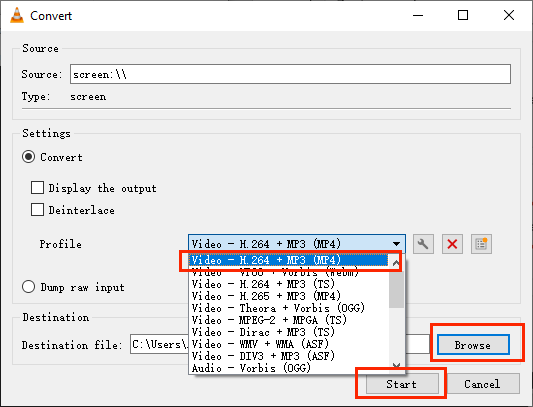
Step 5. Then, open the Profile list and select the “Video – H.264 + MP3 (MP4)” option. Meanwhile, click Browse to select a destination folder and filename. Finally, click Start to begin recording. Once you want to end the recording, click the Stop button.
How to Record a Video While Watching It in VLC
The main function of VLC is to play media. Most of us use it for playing videos. Sometimes, when you are playing a video in VLC, you may want to save part of it. In that case, you can use its built-in recording feature to record a video while watching it.
Step 1. First, click View and select Advanced Controls.
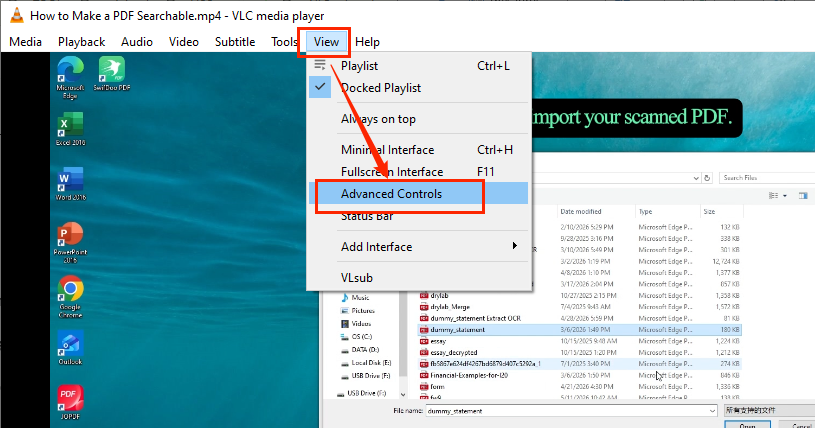
Step 2. Then, a new row of icons will appear above the playback controls. Now, you can play your video in VLC. When you want to start recording, click the red Record icon.
Step 3. When you want to complete the recording, click the Record icon again. Finally, the video will be saved automatically.
How to Record Webcam Video with VLC
In addition to recording activities on a desktop, VLC can help you record directly from connected cameras. How to record webcam video using VLC?
Record Webcam Using AWZ Screen Recorder
Step 1. Before setting up VLC, connect your webcam to your PC so it can be recognized by your operating system.
Step 2. Then, launch VLC, click Media, and select Open Capture Device.
Step 3. Open “Capture mode” and select DirectShow. Then, select your webcam from the device list.
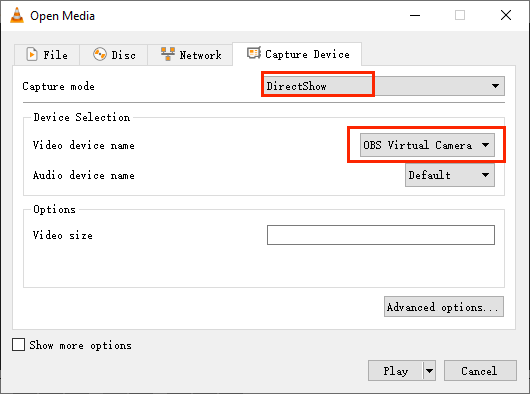
Step 4. Open the Play dropdown and click Convert. Next, open the Profile list to select the recording output format, then click Browse to choose the save path. Then, click Start to record the webcam footage. To finish the VLC webcam recording, click Stop.
How to Record Streaming Video with VLC
As a useful screen recorder, VLC also allows you to record online streaming videos, such as IPTV streams, live broadcasts, and network streams. How to record a streaming video using VLC? Follow the steps below:
Step 1. Copy the URL of the stream video that you want to record.
Step 2. Go to VLC, click Media, and select Open Network Stream.
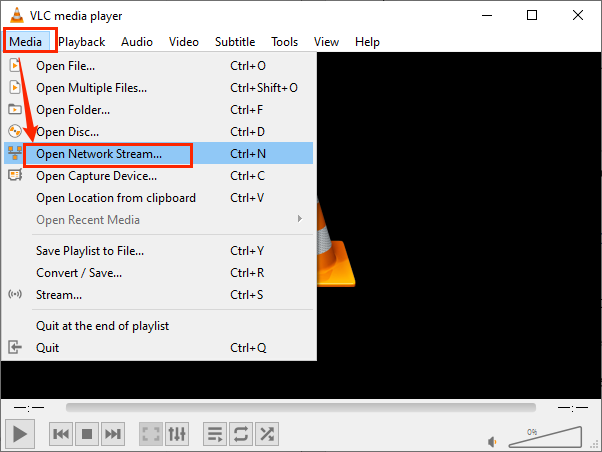
Step 3. Click the inverted arrow next to Play and click Convert.
Step 4. Here, expand the Profile list to select the output format and click Browse to select a destination folder. Then, click Start to record the streaming video.
How to Record Audio with VLC
Can you record audio only with VLC? Of course, you can! VLC lets you capture audio from microphones and other audio devices. How to record audio with VLC? Here’s how:
Step 1. Access VLC, click Media, and select the Open Capture Device option.
Step 2. To record audio from a microphone, select DirectShow from “Capture mode”. Then, set “Video device name” to None and set “Audio device name” to your microphone.
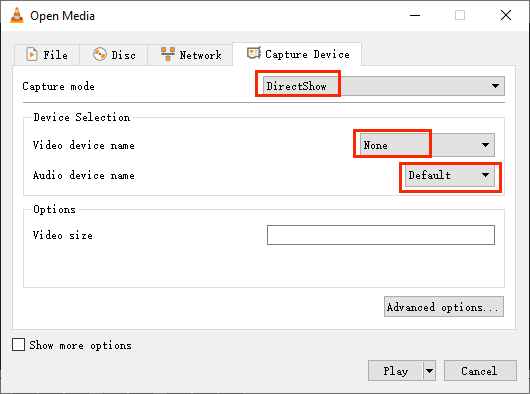
If you want to record audio from the system, select Desktop from “Capture mode”. Similarly, set “Video device name” to None and choose the appropriate audio source.
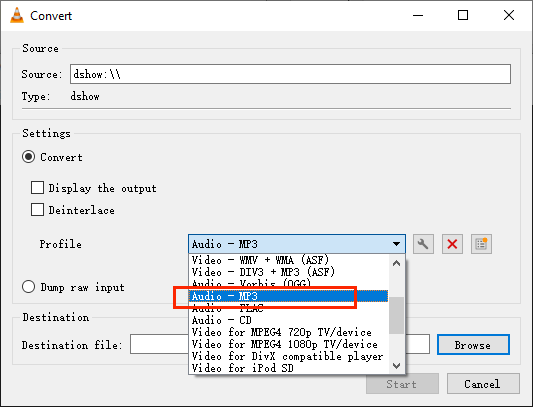
Step 3. Then, click the inverted arrow next to Play and select Convert. Open the Profile list and select “Audio – MP3” or another audio format. Meanwhile, click Browse to select the destination folder and click Start to record the audio.
Tips: VLC Recording Settings for Better Quality
How to get a high-quality recording in VLC? Once you customize the recording settings properly, you can make a clear and high-quality recording. How to set up VLC for better recording quality? Here, I will introduce you to the recommended VLC recording settings.
Screen Recording
- Frame rate: 30 FPS
- Resolution: Native screen resolution
- Video codec: H.264
- Container format: MP4
Audio Recording
- Audio codec: AAC
- Bitrate: 192 kbps or higher
Webcam Recording
- Resolution: 1080P
- Frame rate: 30 FPS
- Bitrate: 4000 – 8000 kbps
Alternatives to VLC for Recording
Although VLC has recording features, it is not a dedicated screen recorder. Moreover, it has a steep learning curve for beginners to master how to use it for recording. Hence, I’d like to recommend several VLC alternatives to you.
- AWZ Screen Recorder
- OBS Studio
- Bandicam
- ScreenPal
- Loom
- Screencastify
Among them, I'd like to highlight the AWZ Screen Recorder. It is a free screen recorder for Windows and Mac, which allows you to record the screen, audio, and webcam effectively. During screen recording, it allows you to make real-time drawings. What’s more, it is a stream video recorder that lets you capture videos from YouTube, Facebook, and other platforms. In addition to saving recordings as MP4, AWZ Screen Recorder supports other output formats, such as MOV, WMV, and MKV.
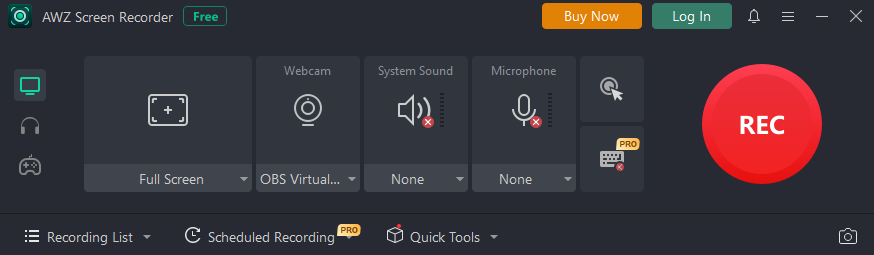
What’s more, AWZ Screen Recorder comes with a built-in video editor to refine recorded videos, like trimming unwanted clips. All in all, it is a good screen recorder. You can install it and explore its recording features.
Conclusion
VLC is an open-source media player and screen recorder. As a screen recorder, you can use it to capture onscreen activities, webcam footage, streaming videos, and audio from a microphone. How to record with VLC? In the content above, I show you the step-by-step guide on how to record video and audio with VLC. What’s more, I recommend excellent alternatives to VLC for recording. I hope this article can be helpful to you. Now, make your high-quality recordings!