
Constantly holding the record button on Instagram can make filming tricky, particularly for longer videos or creative shots. Learning how to record hands-free videos on Instagram makes the process seamless and much more enjoyable.
Reasons to record on Instagram without holding the button.
- Capture longer stories and reels without interruptions.
- Keep your hands free for gestures, props, or multitasking.
- Produce polished, high-quality videos effortlessly.
- Protect your fingers from getting tired during long recording sessions.
Record on Instagram Without Holding the Button via Hands-Free Mode
Instagram’s Hands-Free mode lets you record videos easily without holding down the button. It lets you capture clips continuously without having to constantly press the record button, giving you the freedom to focus on creativity. Exclusive to stories and reels, this feature provides uninterrupted, smooth video playback, simplifying content creation and giving it a professional edge.
Check out how to keep recording on Instagram without holding the button using its built-in Hands-free mode.
Step 1. Open Instagram and move to the Home tab. Then, head over to the Instagram Reels tab right from your home screen.
Step 2. Once you open the story mode camera, select the arrow icon on the left side of the window. Locate and tap the Hands-free icon to begin recording.
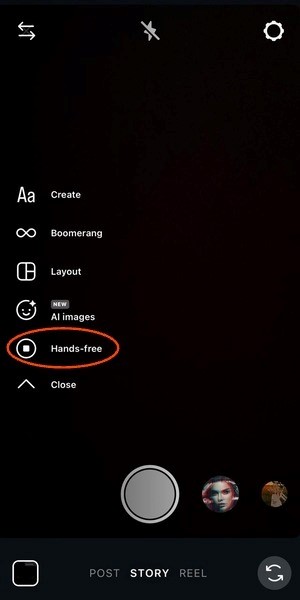
Note. The maximum video length you can create on Instagram is 1 minute. Also, after one minute, it will stop functioning on its own.
Step 3. When you already have the video, it is time to add effects. You can include stickers and emojis, and write or draw anything.
Step 4. Once you are satisfied with the quality of your video, tap Next to upload it to your Story.
Keep Recording on Instagram Without Holding the Button Using the Timer
Another way to record on Instagram without holding the button is by utilizing the built-in timer. This feature lets you set a countdown before recording starts, giving you time to get ready. Ideal for selfies, group shots, or dynamic reels, the timer ensures smooth, hands-free videos while keeping your content perfectly timed and polished. It also comes in handy while filming alone, or setting up the phone on a tripod.
Find out how to record on Instagram without holding the button using the timer.
Step 1. Open the Instagram app. Then, head over to the Instagram Reels tab right from your home screen.
Step 2. You’ll find a list of icons on the left side of the screen. Locate and tap the Timer icon (indicating a clock).
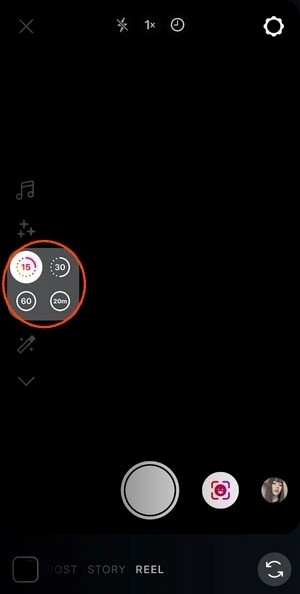
Step 3. Select how long you want the countdown to be. You can choose 3 seconds or say, 10 seconds, as it works for most users. After that, tap to confirm your choice.
Step 4. Now, tap the Record button. After counting you in, the app starts recording on its own.
How to Record Hands-Free Video on Instagram with AssistiveTouch on iPhone
iPhone users can shoot hands-free videos on Instagram with AssistiveTouch, a handy accessibility feature. Turn on AssistiveTouch to create a virtual button that lets you start and stop recording without touching your screen. Capture flawless, uninterrupted videos using this method, making it simple to produce top-notch stories, reels, or live content.”
Here’s how to record on Instagram without holding the button via AssistiveTouch on iPhone.
Step 1. On your iPhone, open Settings. Locate Accessibility and tap Touch.
Then, find and turn on the AssistiveTouch feature. You will see the menu bar on the screen as a circle.

Step 2. Hit the Create New Gesture button below it to create a custom gesture for recording.
Next, press and hold in a spot where Instagram’s recording button would be. Keep pressing until AssistiveTouch’s blue bar at the bottom fills up.
Step 3. After creating a gesture (or macro), tap the Save button in the top-right corner. You can name it to make it easy to locate.
Step 4: Launch the Instagram app, then tap the Circle button to open the AssistiveTouch menu bar.
Step 5. Click on Custom to find your recently created gestures. Next, choose your newly created gesture to start recording on Instagram.
Comparison Table: Which Method Is Right for You
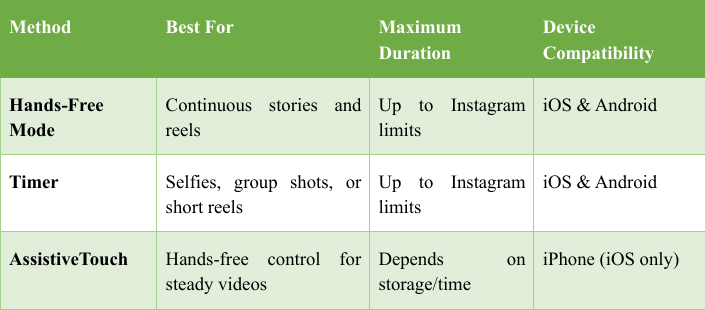
Choosing the proper method for recording on Instagram without holding the button depends on your needs, device, and the type of content you want to create. The table below outlines Hands-Free Mode, Timer, and AssistiveTouch, showing their ideal uses, maximum recording times, and device compatibility. This will help you pick the method that works best for your videos.
BONUS: How to Screen Record Instagram Story Videos Free
Hands-Free Mode, Timer, and AssistiveTouch simplify Instagram recording but have limits—short clips, delays, or iPhone-only access. AWZ Screen Recorder solves these problems, letting you effortlessly capture Instagram stories and live streams with smooth, uninterrupted video.
A versatile solution for video recording, AWZ Screen Recorder ensures smooth and reliable capture. This free screen recorder with no watermark ensures every recording looks neat and professional. You can record streaming videos from Instagram, TikTok, or other platforms without hassle. The app also lets you schedule screen recording in advance, so you never miss critical live streams or stories. Perfect for creators and viewers alike.
Learn how to record an Instagram Story using AWZ Screen Recorder.
Step 1. Grab AWZ Screen Recorder from the official site and install it on your computer. Then, launch the program.
Click the three-line icon button in the top right and choose Settings. Adjust the video format, resolution, quality, and audio. And click “Apply”.
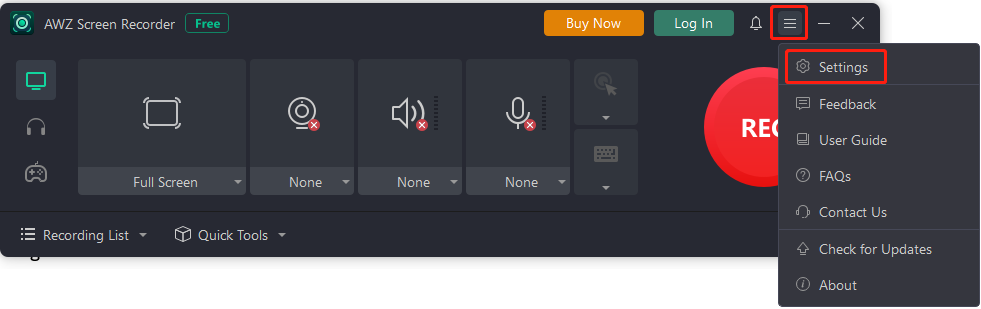
Step 2. Open Instagram on your PC and locate the Story you wish to record. Tap “Full Screen” and choose “Select Region”. Move your mouse and click the screen to draw a rectangle over the area you want to record.
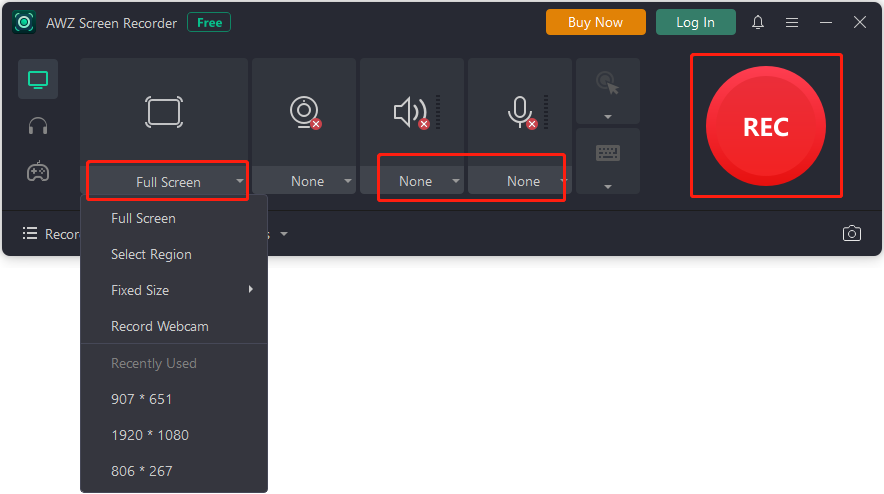
Step 3. Tap the drop-down arrow below the speaker icon. Then select the audio device you use to activate the speaker feature.
Step 4. Press “REC” to record the Instagram Story. Once done, end the recording to save it.
To Wrap Things Up
Making Instagram videos doesn’t have to be hard—capturing the perfect moment is easier than ever. Learning how to record on Instagram without holding the button makes creating stories and reels easier, smoother, and more professional. Record your Instagram content using Hands-Free Mode, Timer, or AssistiveTouch. For flawless, uninterrupted videos, try AWZ Screen Recorder. The simple interface ensures you can capture every moment smoothly and post with confidence.