Can You Record a YouTube Live Stream?
Yes, you absolutely can! However, to record YouTube live stream videos, you will need a little outside help.
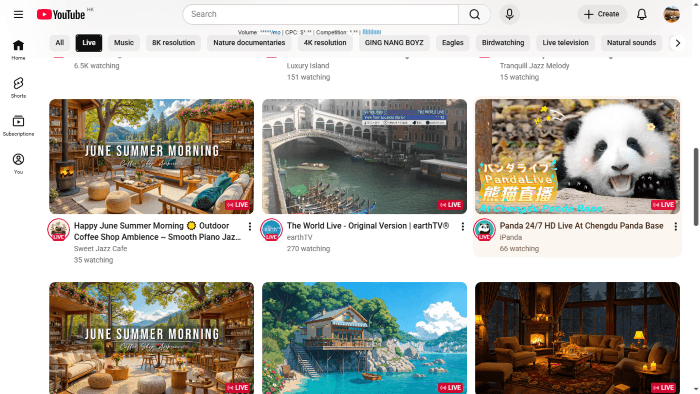
When a video creator goes live, YouTube automatically saves the video on their channel so they can keep it. But as a viewer at home, you do not have a built-in button to save that video to your computer. If the creator decides to delete the video or make it private after they finish talking, it's gone forever.
This is exactly why you need a screen recording tool. Using one is the best way to make sure you never miss your favorite moments. Do not worry if you are not good with computers. These tools are very easy to use, and we will guide you through every single step.
1. The Best Free Way to Record YouTube Live Stream
If you want the best results, using a professional program, such as AWZ Screen Recorder, is the smartest choice.
AWZ Screen Recorder is completely free to use. It is designed to be incredibly easy, even for beginners. One of the best things about it is that it leaves no watermark. Your video will look clean and perfect. Furthermore, AWZ is a highly capable 4k screen recorder. This means it can record your screen at the highest possible quality.
Here is how to use AWZ Screen Recorder:
- Download, install, and launch the software.
- Open AWZ Screen Recorder. You can choose to record your entire screen or draw a box just around the YouTube video player.
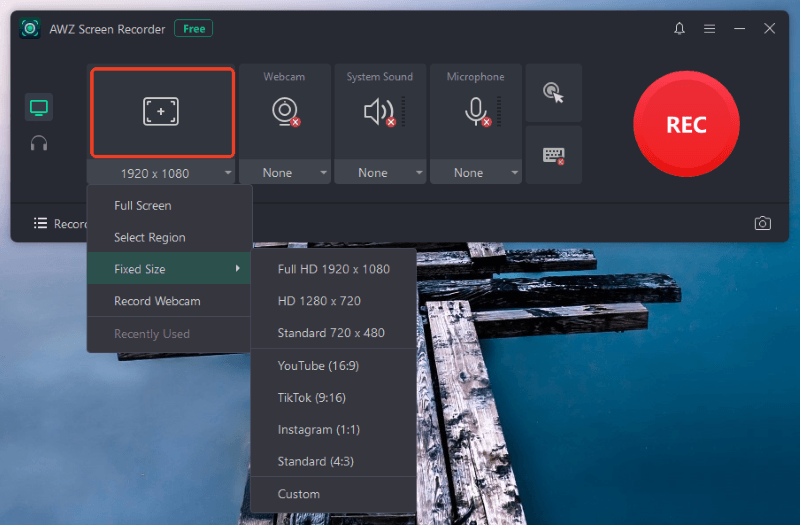
- Look for the audio settings. You need to make sure System Audio is turned on. System audio is the sound that comes out of your computer speakers. This ensures the program hears and records the YouTube video, not the sounds in your room.
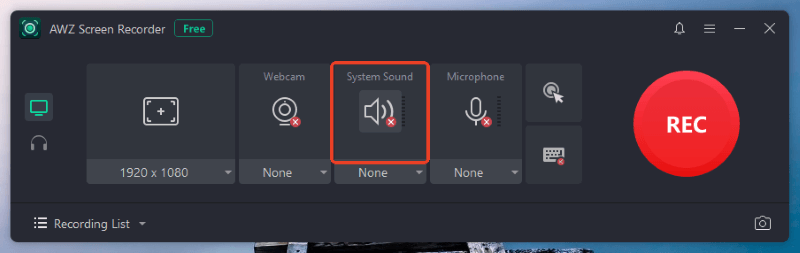
- When ready, click the big REC button. When the video is over, click Stop.
Other Great Features
AWZ Screen Recorder is not just for YouTube. It is packed with other fun features. For example, you can use it to record gameplay if you want to show your friends how you play video games. You can also use it to record just the audio, like a song or a podcast, without any picture.
If you often need to record, whether it's the screen or the sound, then having AWZ Screen Recorder would be a great choice! Give it a try today!
2. Record YouTube Live Stream Online Free
What if you do not want to download a new program to your computer? You can still save videos using an online tool right in your web browser. This is a very convenient option.
You can use a browser extension. An extension is a tiny tool you add to your web browser. If you want to record a video on Google Chrome, tools like Awesome Screenshot or Loom are great choices. You can add them to your browser from the web store.
Pros and Cons
❌ Because they run over the internet, you need a very strong, stable connection. If your internet slows down, your recording might look blurry or stop completely.
❌ Also, some online tools only let you record for a few minutes unless you pay them money. They are not as powerful as a no time limit screen recorder, like AWZ Screen Recorder.
How to use an online recorder:
- Open Google Chrome and add a recording extension like Loom.
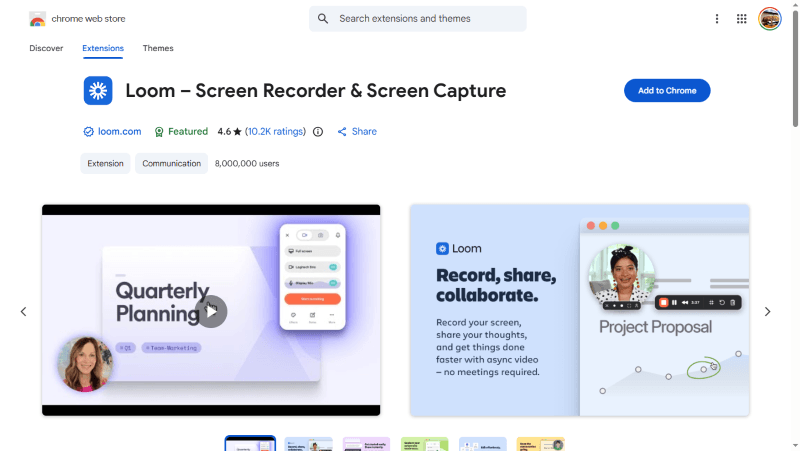
- Open the YouTube live stream in a new tab.
- Click the extension icon at the top of your browser, make sure the sound is turned on, and click Start Recording.
3. Record YouTube Live Stream Using VLC
If you already use VLC Media Player to watch movies on your computer, you are in luck! You can actually record screen with VLC. This method is completely free and works very well, though it takes a few extra steps to set up.
VLC is famous for playing almost any type of video file, but it also has a secret feature: it can record video directly from the internet.
How to do It:
- Open your VLC Media Player.
- Look at the very top of the window and click on Media. Then, select Open Network Stream from the list that drops down.
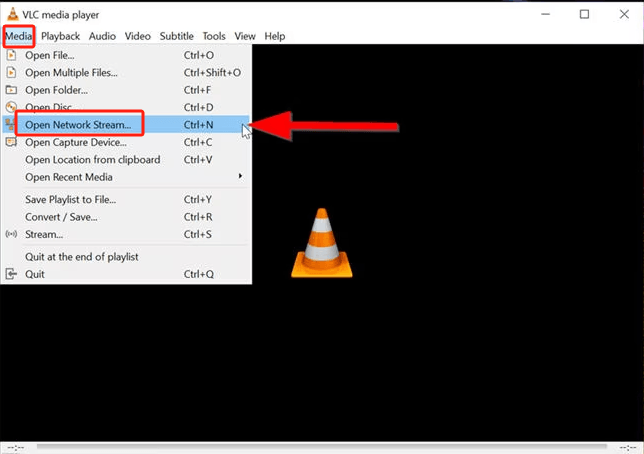
- A new box will pop up. Go to your web browser, copy the YouTube live stream URL (the link at the top of the page), and paste it into the empty box in VLC.
- Look at the bottom of that box. Instead of clicking Play, click the little arrow next to it and choose Stream.
- Follow the simple prompts on the screen to choose where to save the video file on your computer, then click Start. VLC will now grab the video from the internet and save it for you!
Conclusion
That’s all about how to record YouTube live stream. You can use an online tool for a quick one-time task, or use VLC if you already have it installed. However, if you want the best quality without any watermarks or confusing steps, AWZ Screen Recorder is the absolute best choice! And it’s 100 free!