Way 1. Download Part of a YouTube Video by Recording
The simplest and safest way to capture a short clip is to record your screen while the video plays. This is a great method because you do not have to download unknown files from sketchy websites.
AWZ Screen Recorder is a good choice for the job. It is very easy to use, even if you are a beginner. It also acts as a high-quality 4K screen recorder, which means your recorded clip will look exactly as bright and clear as the original YouTube video.
Here are the easy steps to download part of a YouTube video for free using this tool:
- Download and install AWZ Screen Recorder on your computer.
- Open your web browser, find the YouTube video you want, and set it to the exact starting point of the clip you want to save.
- Open AWZ Screen Recorder and select the "Record Screen" option.
- Then, choose the recording area. You can set a fixed section or drag the edges of this frame so it perfectly outlines the YouTube video player on your screen.
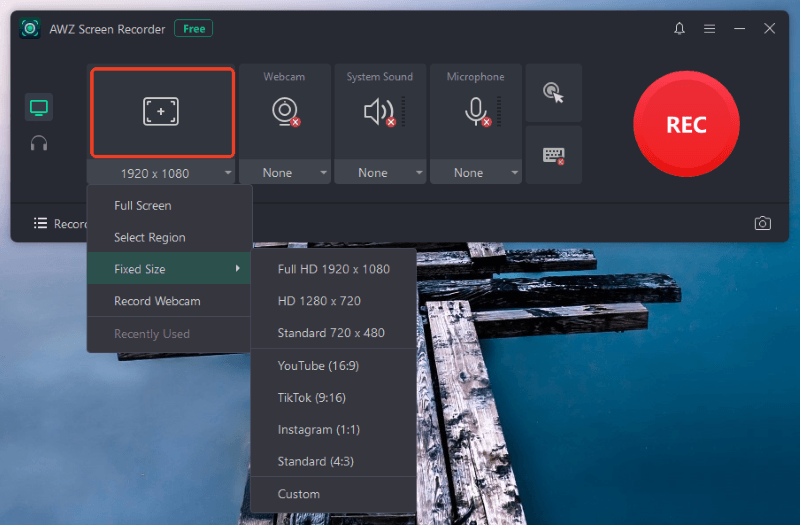
- Trun on the "System Sound". Click the big "REC" button, and then quickly press play on the YouTube video.
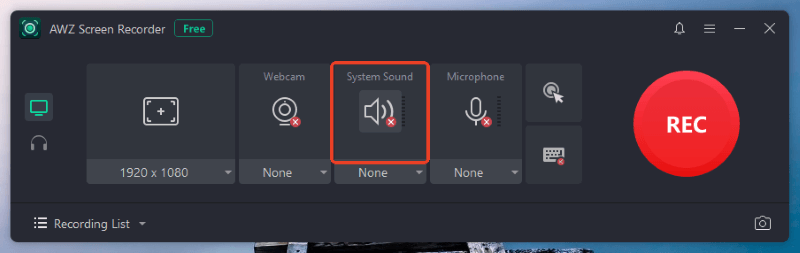
- When your desired clip is finished playing, click stop on the recorder. The short clip will instantly save to your computer.
AWZ Screen recorder is not just for YouTube; it can record any on-screen activity. If you want to record an online business meeting or record gaming video for YouTube, this is the perfect tool. Give it a try if you often need to use screen recording software!
You May Also Like:
How to Record YouTube Live Stream on PC/Mac: 3 Free Ways
Discover exactly how to record YouTube live stream videos for free using simple screen recorders, online tools, and VLC.
READ MORE >Way 2. Download Part of a YouTube Video via Online Video Cutters
If you do not want to install any new software on your computer, you can use a web-based tool. There are websites called "video cutters" where you can paste a link, pick your start time and end time, and download just that specific chunk of video.
To download a specific part of a YouTube video this way, we recommend using a modern and fast tool called SliceTube (https://www.slicetube.io/). It requires no sign-up, has no annoying ads, leaves no watermarks, and allows you to download very high-quality clips.
Here are the steps to use it:
- Open YouTube and copy the web address (the URL at the top of the browser) of the video you want.
- Open a new internet tab and go to SliceTube.io.
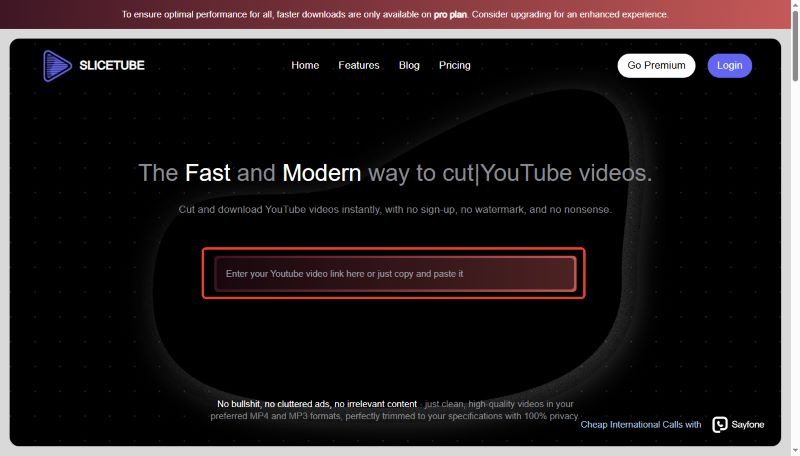
- Paste the YouTube link into the main search bar right in the middle of the website.
- Once the video loads on the page, use the website's timeline sliders. Drag them to select the exact start and end times for your perfect clip.
- Click the "Download" button to save the newly trimmed video file directly to your computer or mobile phone.
Way 3. Download the Whole Video and Trim It
Sometimes you need the highest-quality file possible for an editing project. In this case, the most reliable method is to use a standard YouTube downloader to save the entire 10-minute video first, then use your computer's built-in tools to trim it to size.
Here is how you do it:
- Use a trusted video downloading program or website to save the entire YouTube video to your hard drive.
- If you want to trim video on Windows 10/11, simply double-click the downloaded video to open it in the default "Photos" or "Media Player" app.
- Click the "Video trim" icon, which usually looks like a small pencil or scissors at the top of the screen.
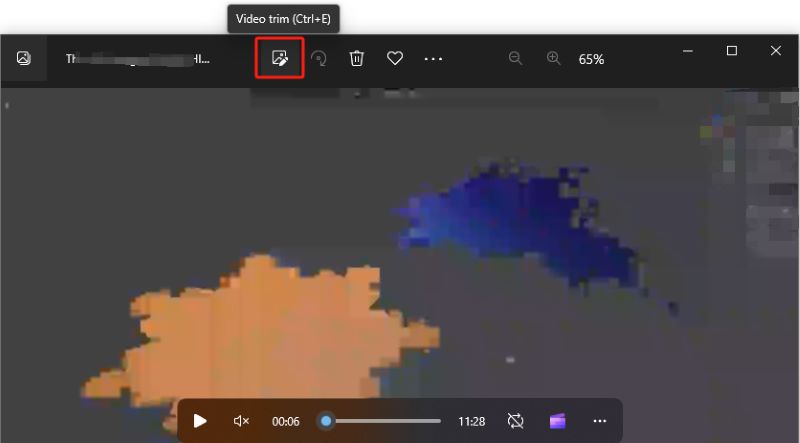
- Drag the sliders at the bottom to isolate just the clip you want.
- Click "Save as copy." You now have a short, high-quality clip saved safely on your computer.
A Note on YouTube's Built-in "Clip" Feature
You might have noticed that YouTube actually has a native "Clip" button right below the video player that looks like a pair of scissors.
It is important to know that this feature does not download a video file to your computer. It only generates a web link that will loop a short 60-second section of the video when someone clicks on it. This built-in tool is the perfect option if you just want to text a funny moment to a friend or share a famous quote on social media.
However, if you need the actual video file saved to your computer for a school presentation or an editing project, you must use one of the three methods listed above.
Conclusion
That’s all about how to download part of a YouTube video. To quickly isolate a clip, a free online cutter like SliceTube is the fastest web-based method. However, recording your screen with AWZ Screen Recorder is incredibly safe and guarantees high-quality results without relying on external websites. Choose the method that best fits your needs and start clipping!